




Need to make a resume but don’t have Microsoft Word? No problem.
Apple Pages is free and includes tons of professional resume templates you can start editing right away.
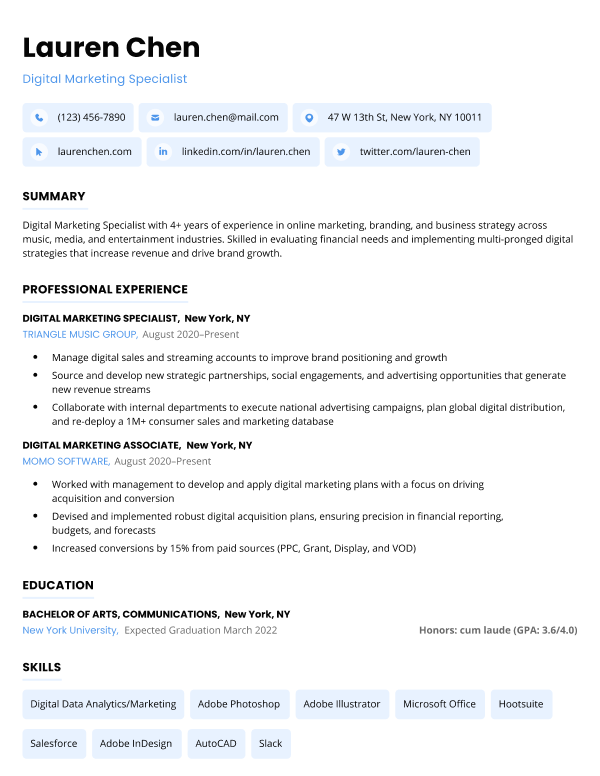
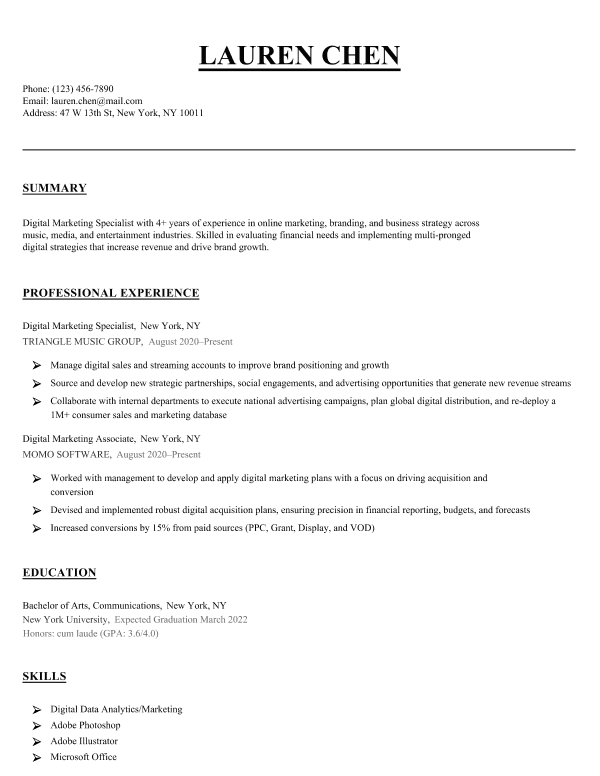
Apple’s free resume templates for Pages
Here are nine free Mac resume templates you can find in the Pages app.
1. Classic Resume
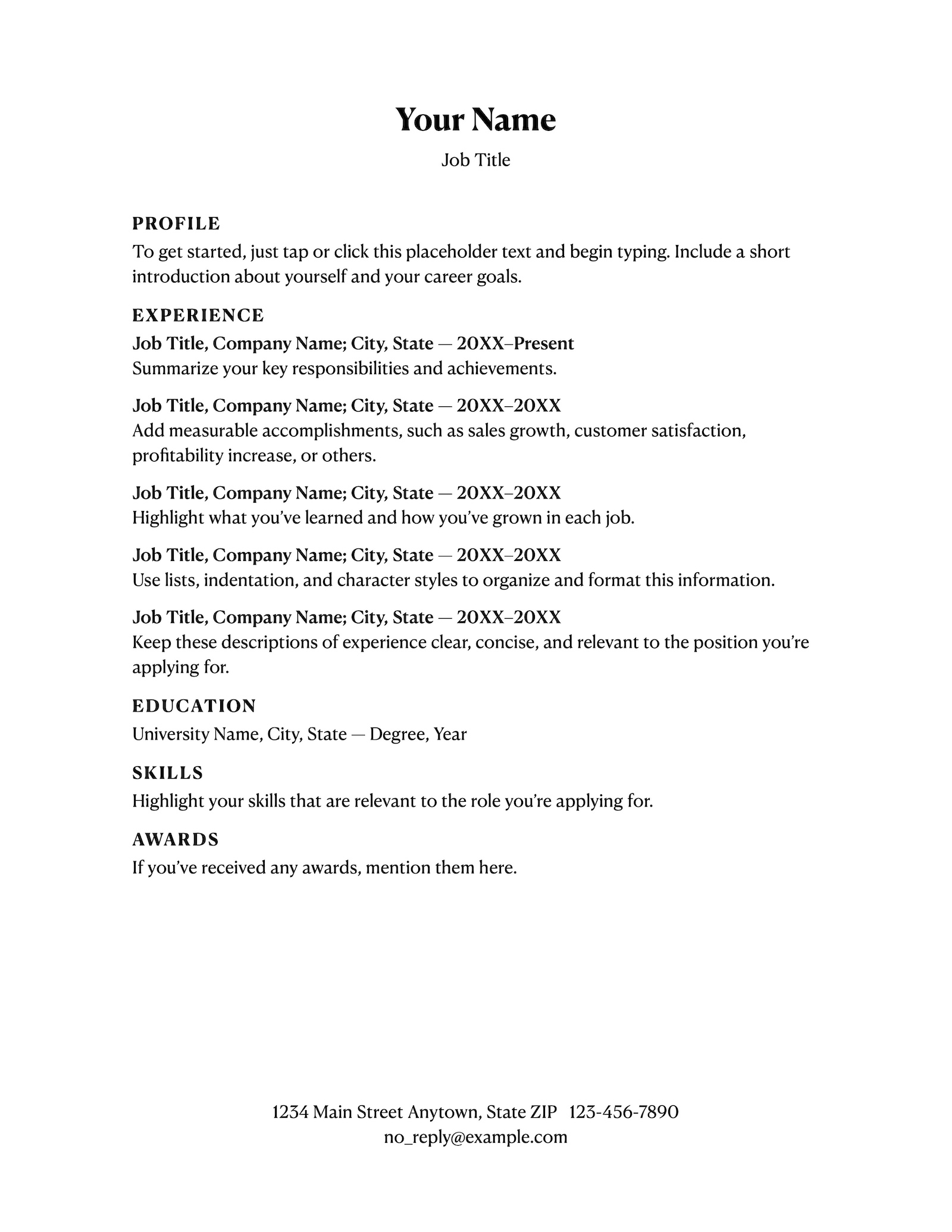
This is your standard minimalist resume template. The Classic template has a clean, straightforward layout that gets the job done.
However, if you’re applying for a competitive position you might want to opt for a more unique template that helps your application stand out.
2. Professional Resume
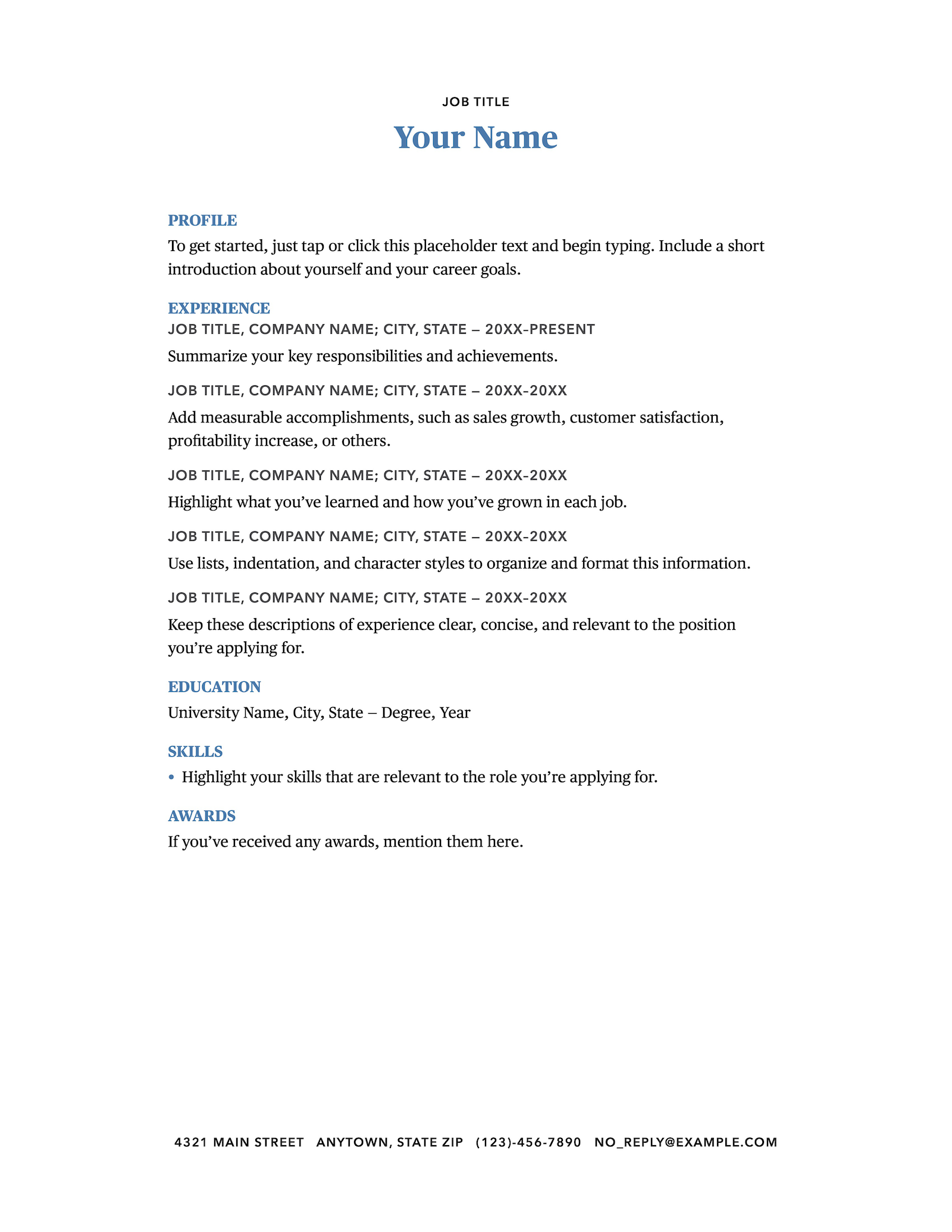
The Professional Pages resume template is fairly basic, but there are a few pops of color that effectively highlight the header and each resume section.
This not only adds visual interest to the page but also guides the reader’s eye to the most important information.
3. Contemporary Resume
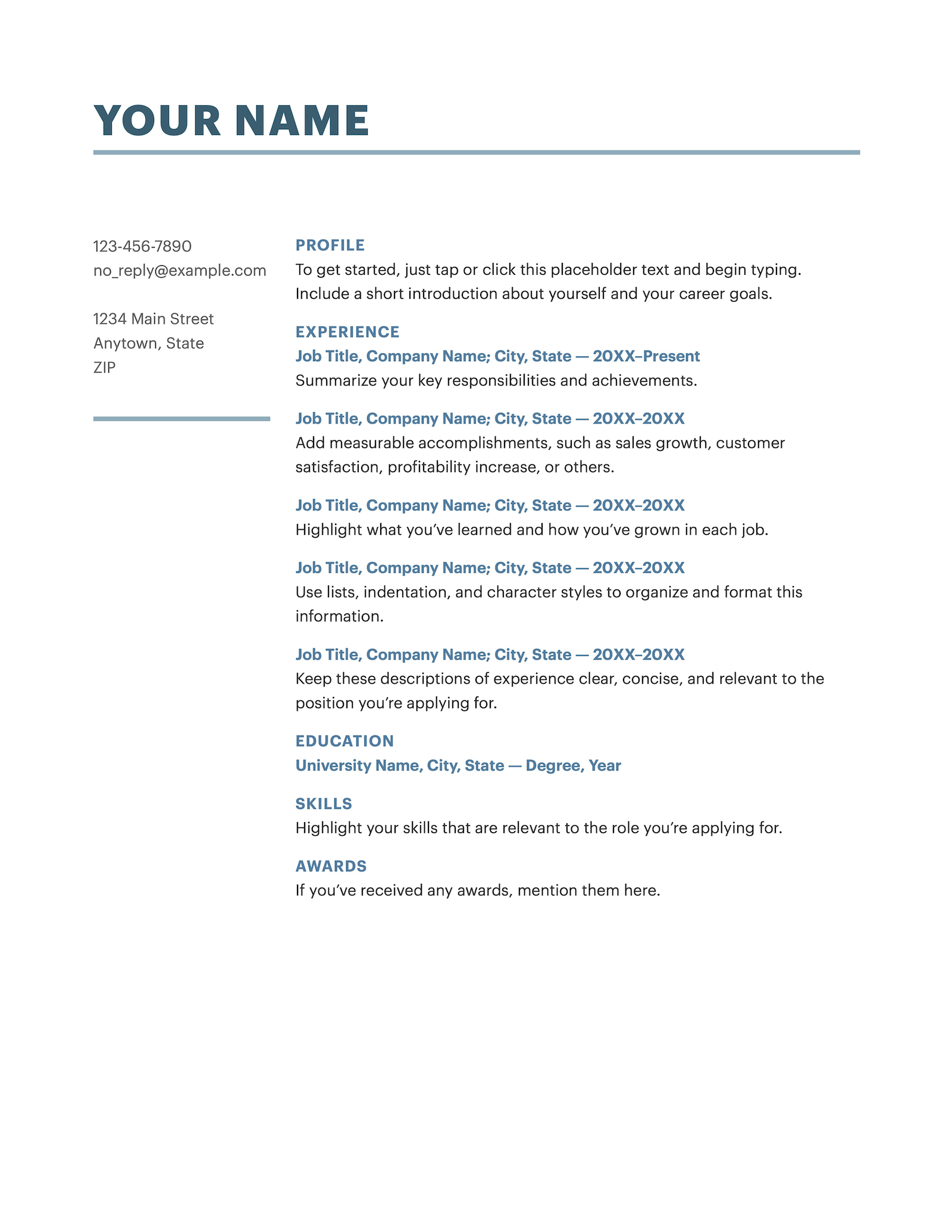
The bold, underlined header differentiates the Contemporary from other Apple Pages resume templates.
If you’re struggling to stick to the recommended resume length of one page, go for the Contemporary template. Because your contact information is placed on the left side of the page, it gives you some extra room to list your skills and professional experience.
4. Personal Resume
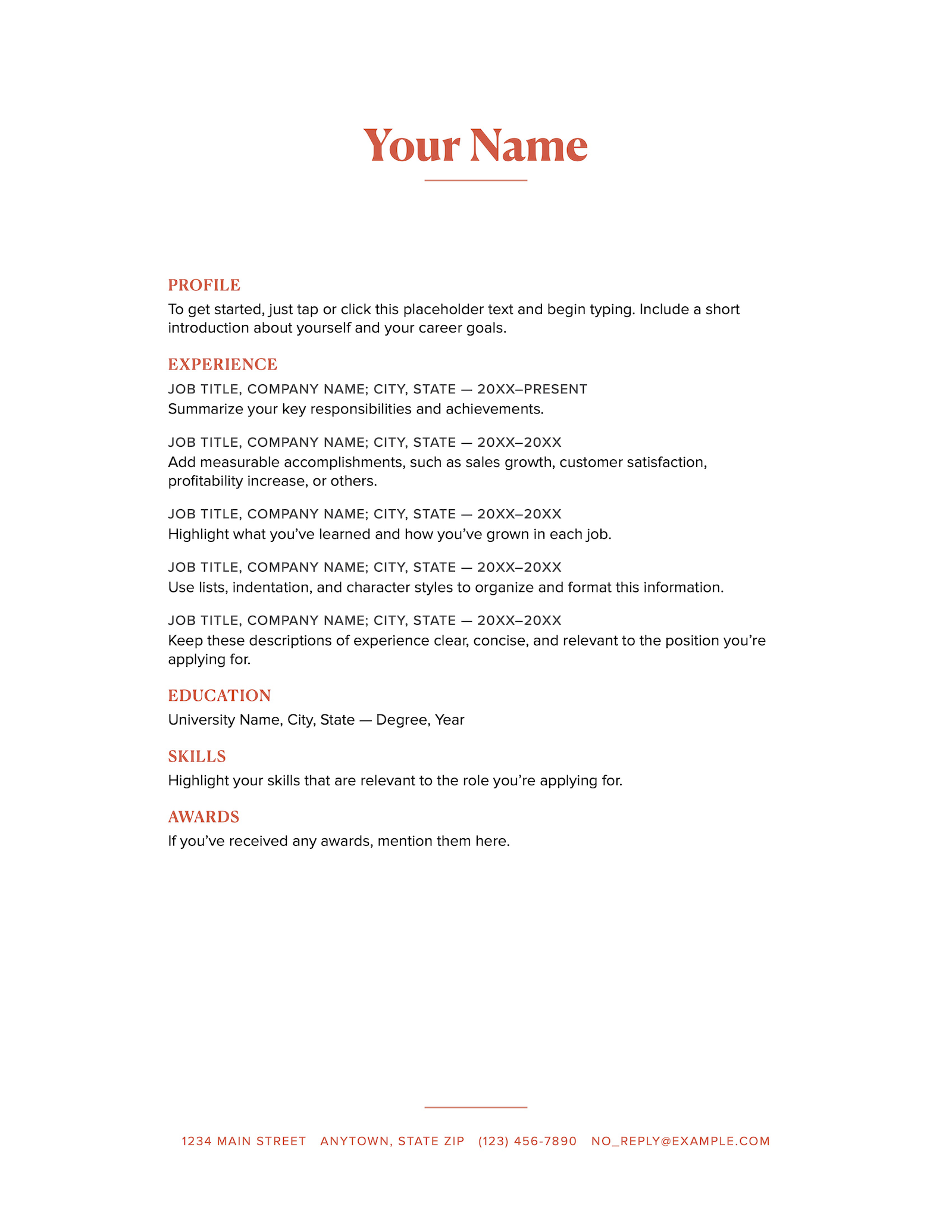
Add a stylish touch to your resume with the Personal resume template for Pages. This template uses colorful orange headers that emphasize your name, contact information, and each part of your resume.
5. Modern Resume
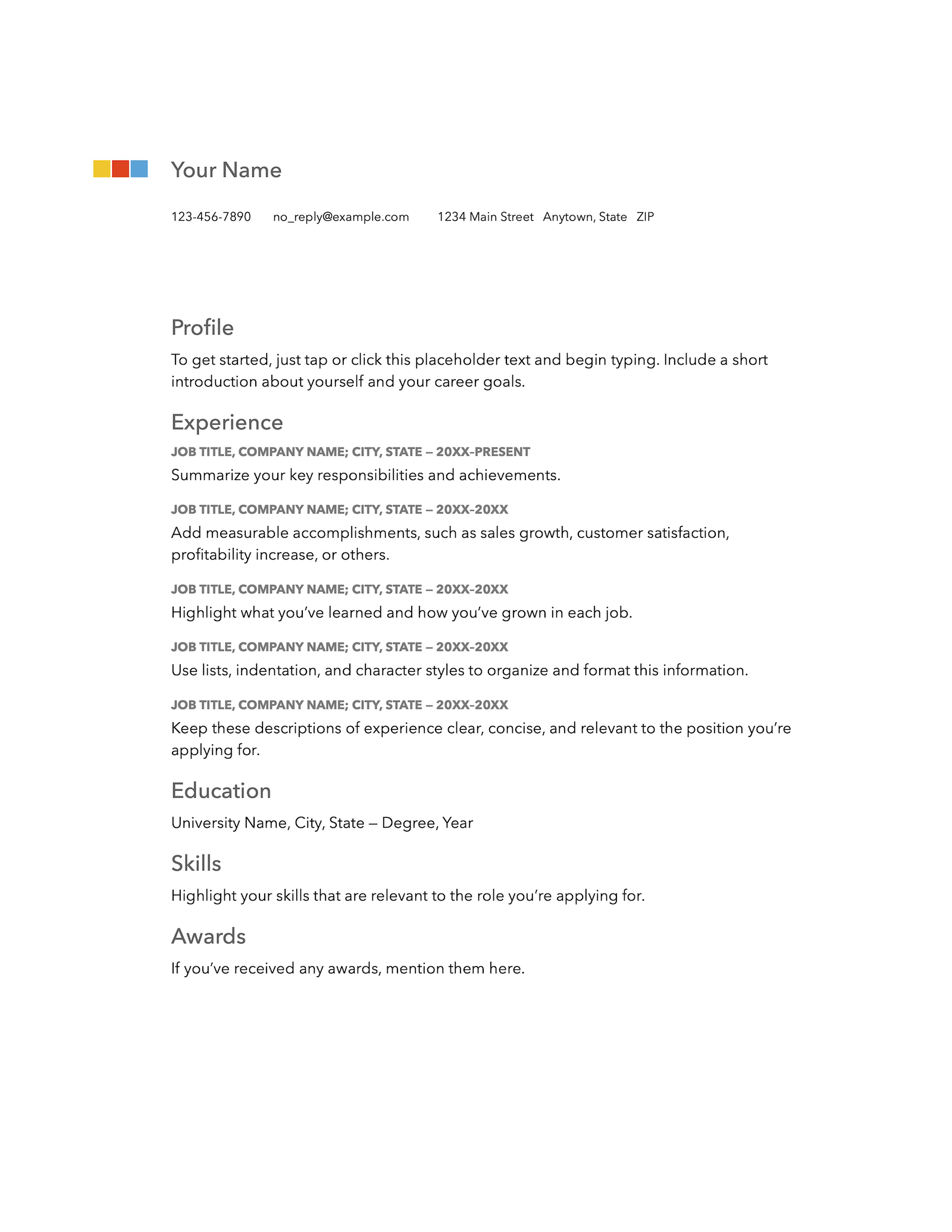
The layout of the Modern resume template is clean and modern, making it a great choice for job seekers in all industries. While the design is minimalistic, the three colorful squares at the top give it some personality.
6. Business Resume
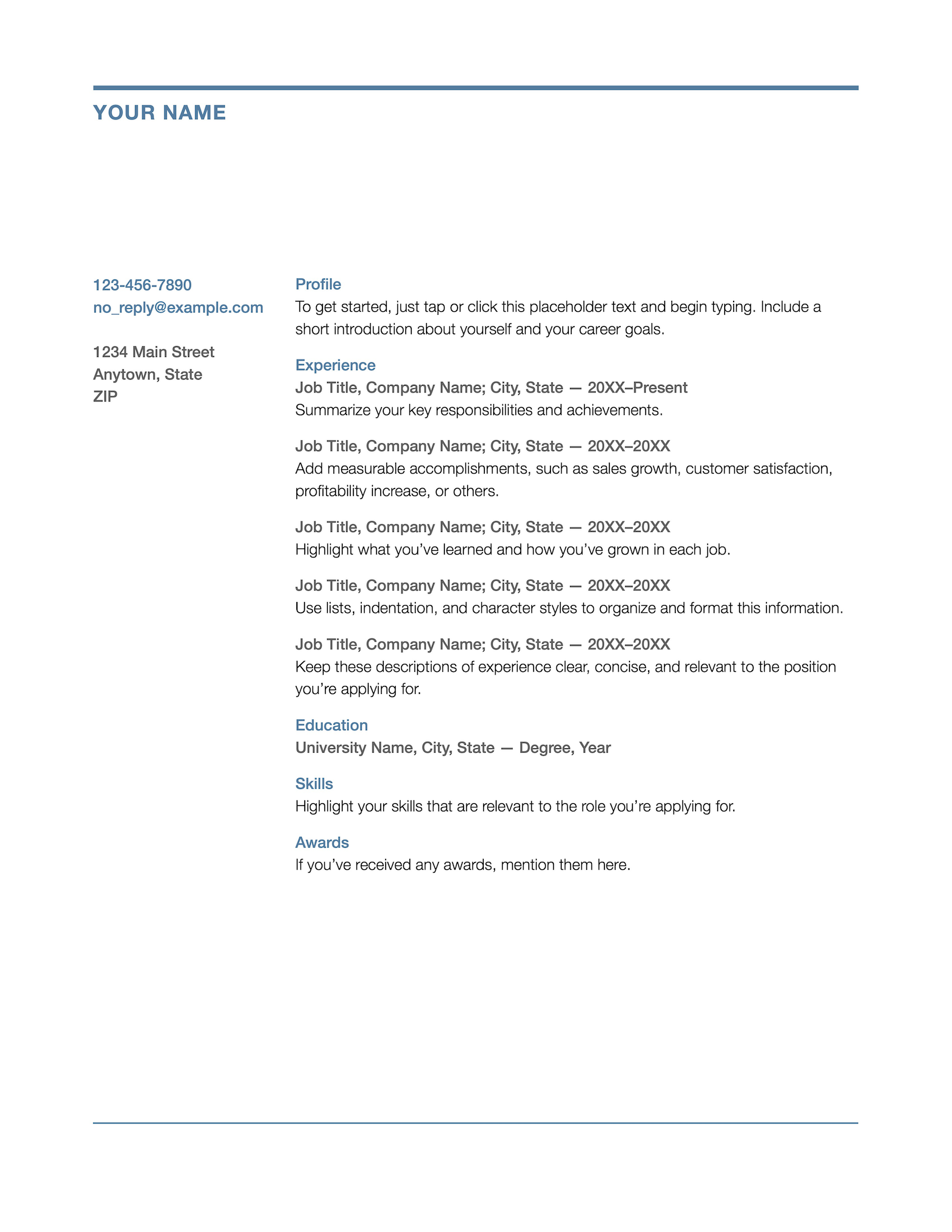
The free Business resume template from Pages is the perfect choice if your main concern is making a professional impression on employers.
The blue line in the header sets it apart from the other available templates, and hiring managers will appreciate the no-nonsense design that makes your accomplishments the center of attention.
7. Elegant Resume
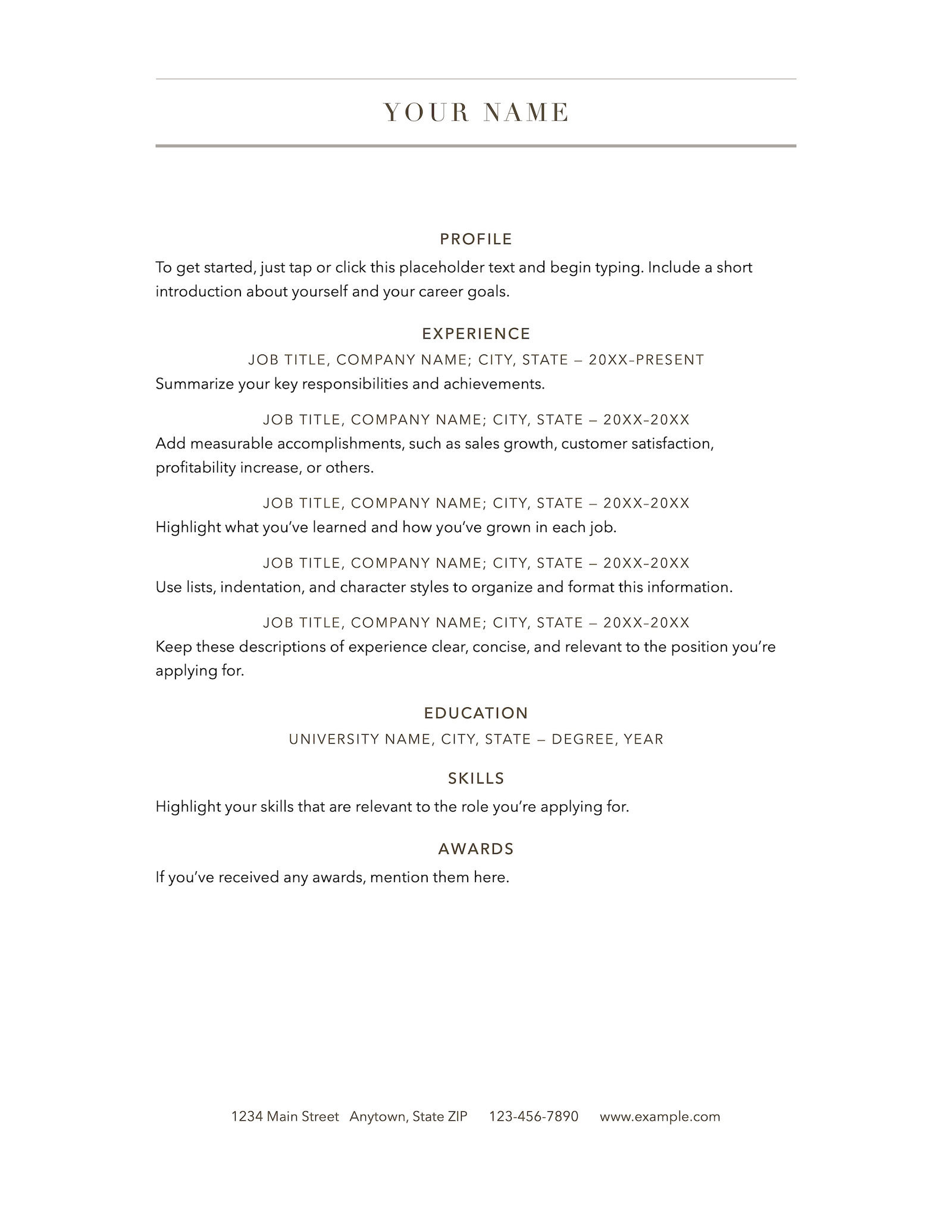
With its sleek design, the Elegant resume template is sure to leave a lasting impression on hiring managers. The layout is simple yet effective, with plenty of white space and a color scheme that gives it a timeless look.
This makes it appropriate for job seekers in a variety of industries, but it’s especially suitable for applicants in creative fields where aesthetics are important.
8. Bold Type Resume
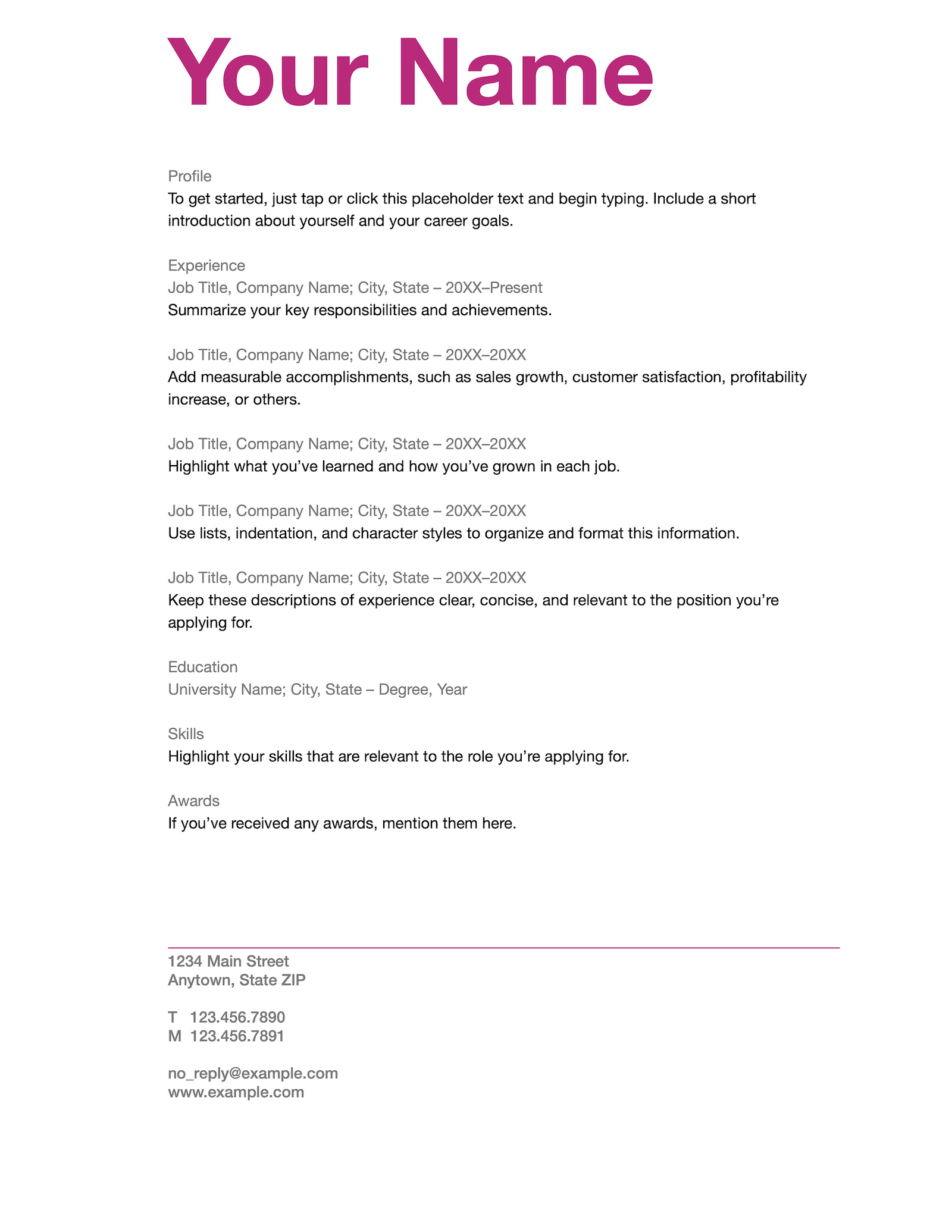
The Bold resume template features an eye-catching header that will immediately grab hiring managers’ attention and make them remember your name.
9. Informal Resume
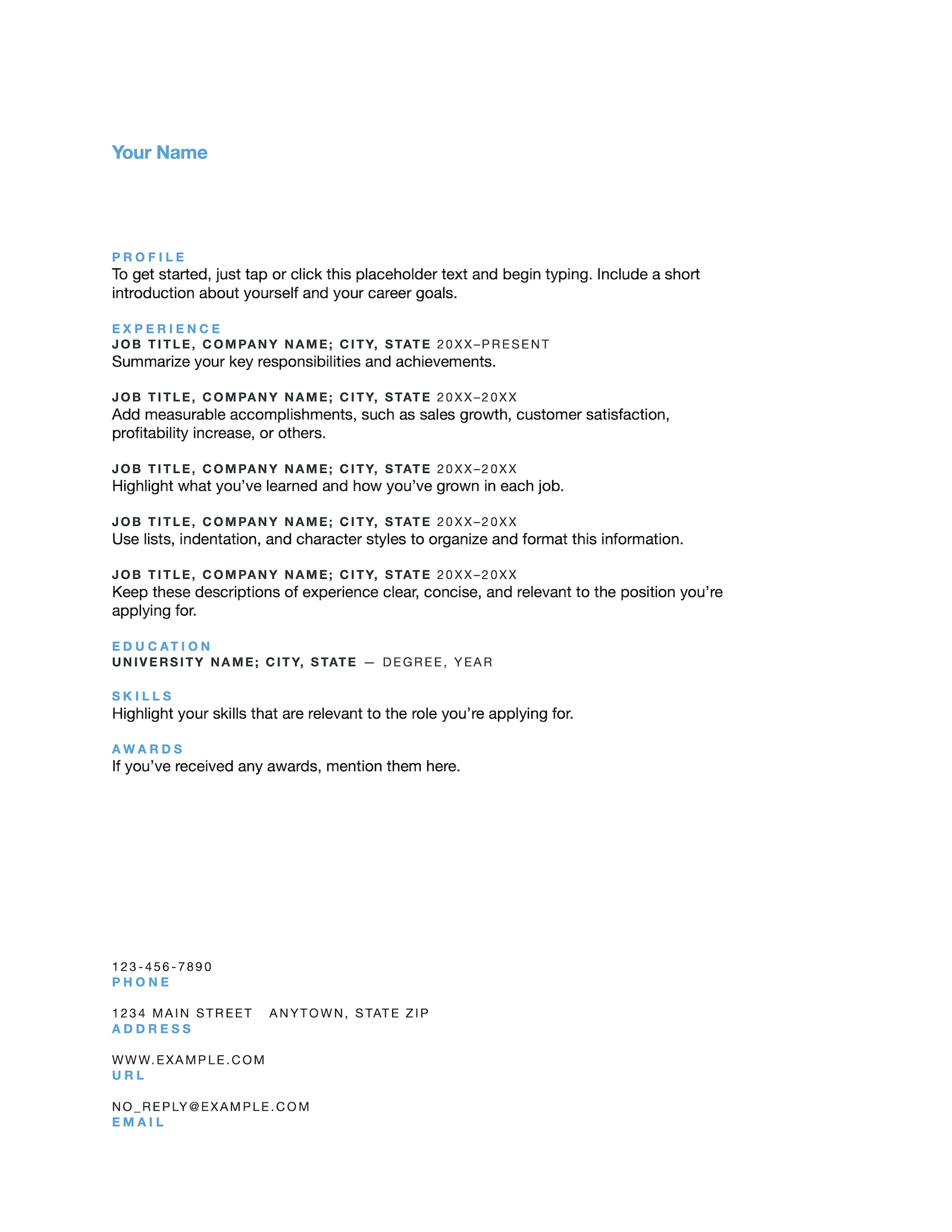
Although it’s called the Informal Resume, this template can be used even if you’re applying for a more formal role.
If you feel like the light blue color used for the header and resume sections doesn’t fit your industry, you can choose a different color.
Custom resume template designs for Pages
Looking for something a little different from the standard Pages resume templates? Here are five custom-made Resume Genius templates for Pages that you can download for free:
10. Easy
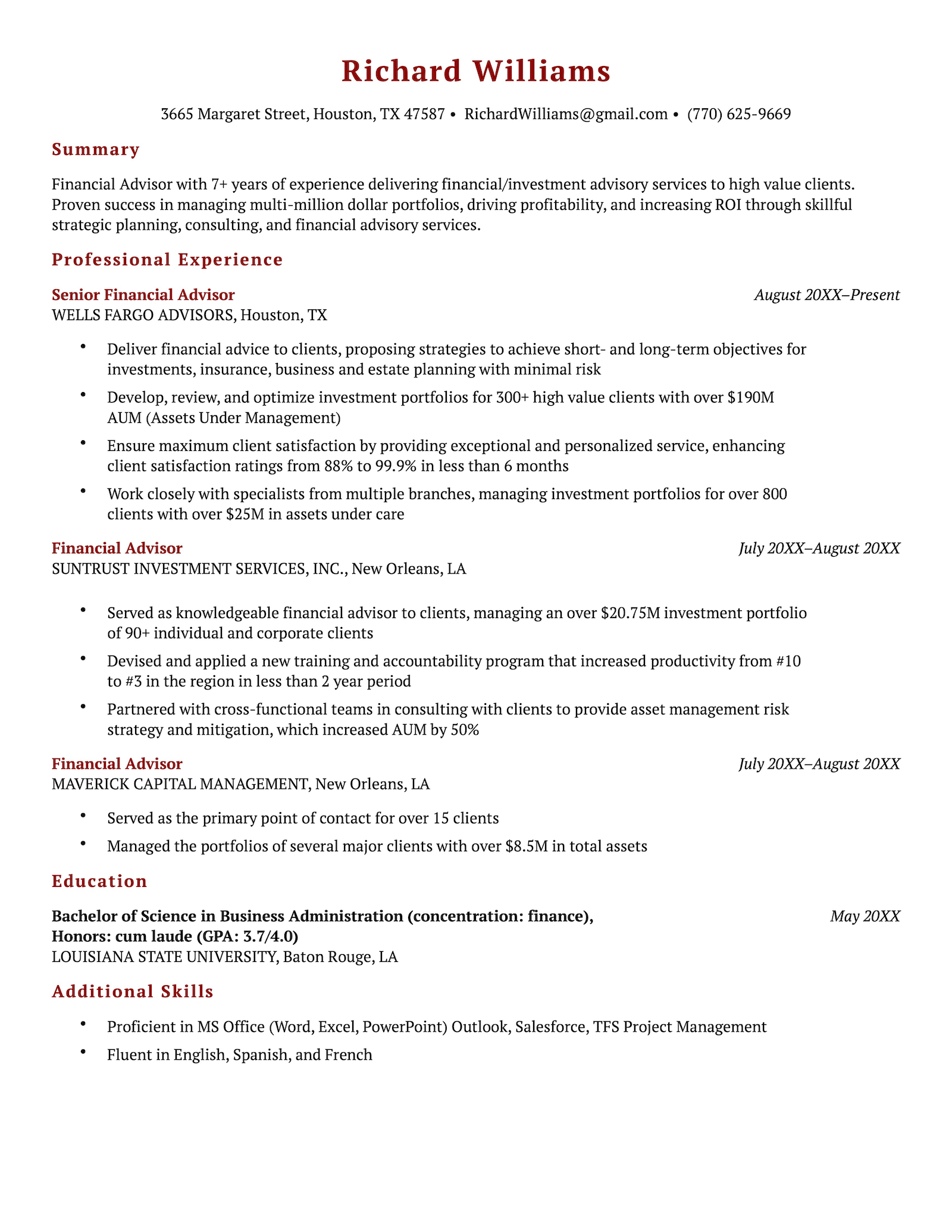
The Easy Resume template is designed to draw attention to your abilities and areas of expertise.
This type of layout also makes it easy to add and change the order of the different resume sections if necessary.
11. Milano
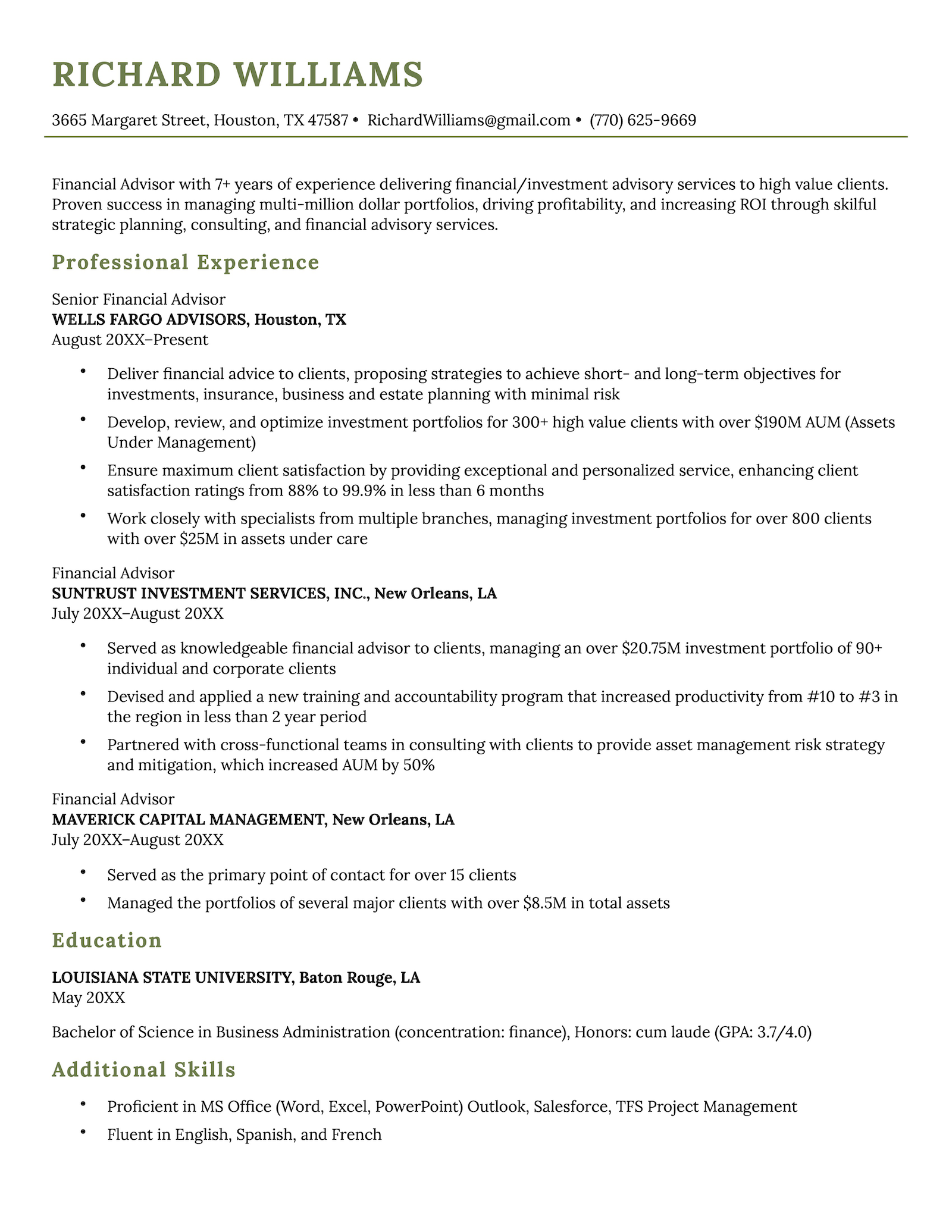
The Milano template has a clean, professional layout that prioritizes readability and content organization. This makes it easy for potential employers to quickly scan and identify key information.
12. Pantheon
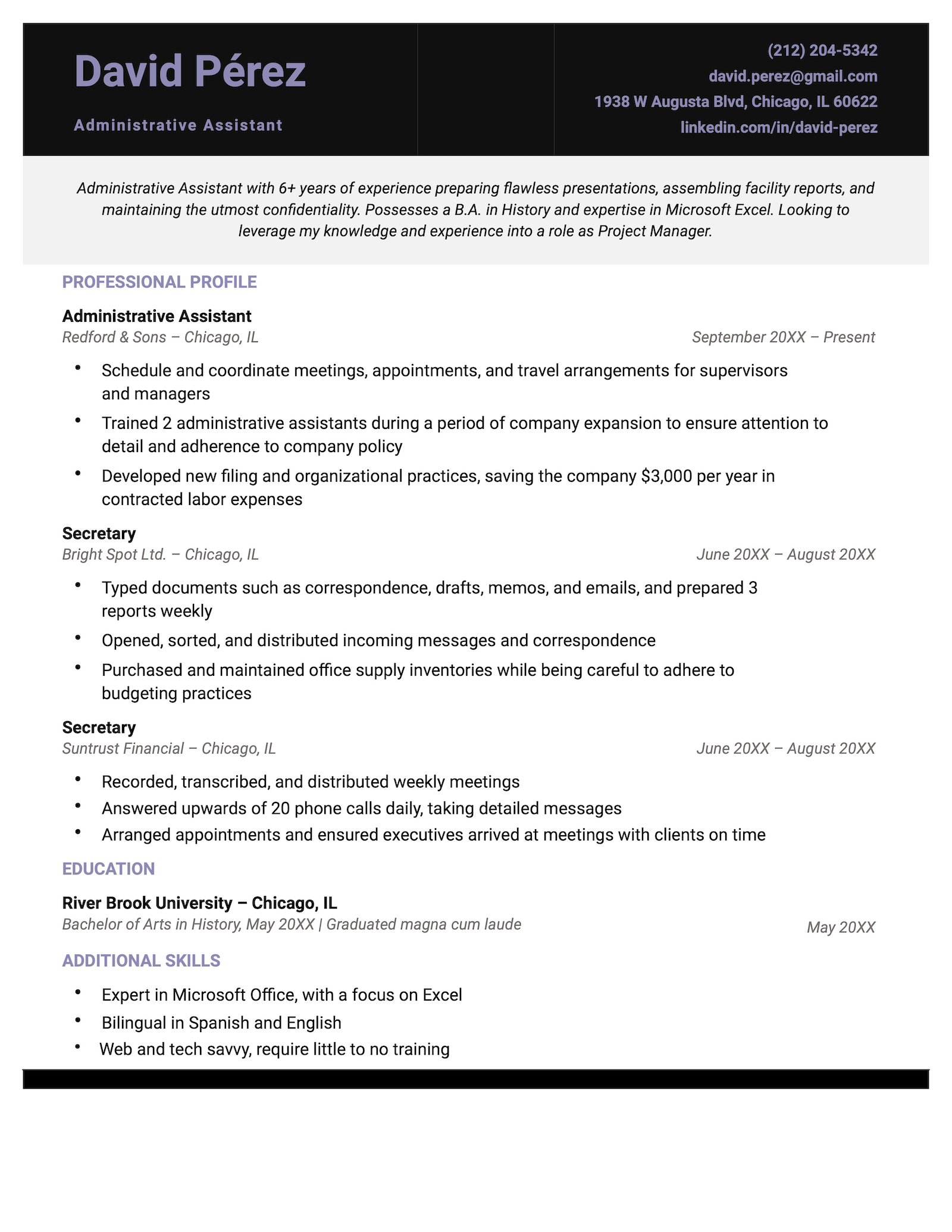
The distinct header of the Pantheon resume template for Pages emphasizes your name and resume summary, giving employers a quick overview of your most impressive accomplishments. Meanwhile, the purple highlights give it a unique look.
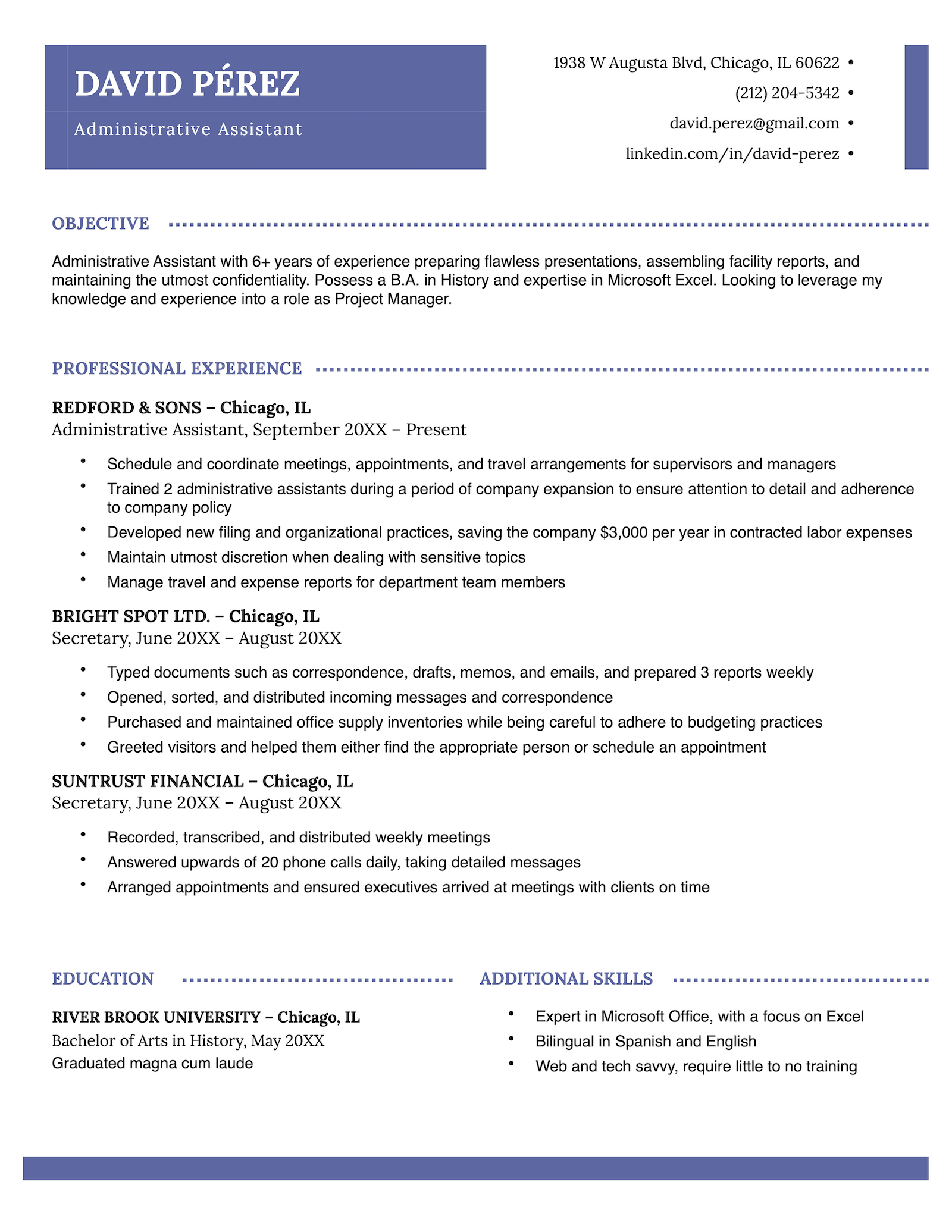
13. Original Professional
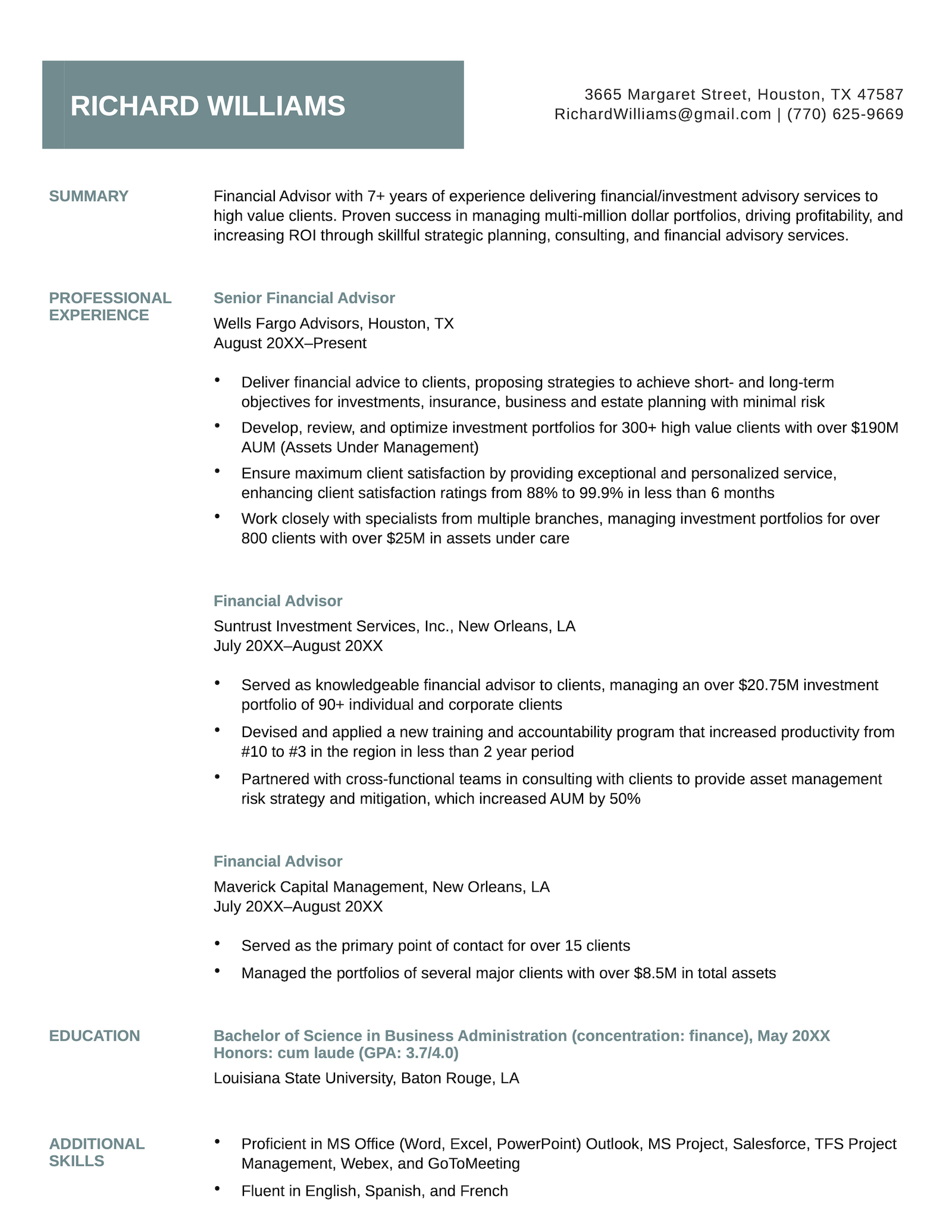
If you’re looking for a contemporary look, try our Professional template for pages. The purple accents and subtle use of lines create visual interest without overwhelming the content and create a cohesive visual flow. The turquoise accents of the White House template for Pages effectively separate your work experience entries without compromising on space, giving you plenty of room to describe your professional background. This is a great template choice if you have years of experience and numerous achievements to list. Here are five tips to help you create a standout resume with Pages: Not all Pages resume templates are suitable for every type of job. More buttoned-up roles call for simple, timeless templates, while roles in creative fields are more flexible. Picking the correct format for your resume will ensure your information is listed in the right order with your most relevant qualifications at the top. If you’re not sure how to format your information, use a traditional chronological resume. In other words, list every job you’ve held in the order that you worked there, with your most recent position at the top. After your resume introduction, work experience section, and education, you may want to add other sections. This step is optional, but if including additional sections on your resume will help you showcase abilities relevant to the job, consider adding them. Some sections you could add are: If a hiring manager can’t read your resume, they’ll reject your application before they get past your introduction. An appropriate resume font is clear and easy to read. Candidates applying for work in creative fields can get away with using more decorative fonts for the header of their resume, but each section should be written in a common font like Arial, Georgia, or Calibri. Also, be sure to pick an appropriate font size – something between 10 to 14 point font. The final step of creating a resume in Pages is to replace the placeholder text with your own information. Remember to proofread it before you send it off to ensure that it’s error-free. If you’re looking for other resume template options, check out some of the following resources: Still curious? Here are some more resources about resume templates that can help you write your own amazing resume: We’ve answered some of the most common questions about Pages resume templates here. Absolutely. Apple Pages is a powerful and completely free alternative to Microsoft Word that’s perfect for creating professional resumes. It has an intuitive interface, built-in templates, and integrates well with other Apple devices. You can craft a standout resume with Pages that gets noticed by hiring managers. Pages provides professional formatting tools, spell-check capabilities, and export options that make it ideal for job seekers who want to create polished resumes without expensive software subscriptions. Getting started with resume templates in Pages is simple and straightforward: Yes, Pages includes matching cover letter templates that complement their resume designs. When you select a resume template, look for the corresponding cover letter template in the same style family. This ensures your application materials maintain a consistent, professional appearance that strengthens your personal brand. To access cover letter templates, open Pages, select “Choose a Template,” and browse the “Letters” or “Business” categories. Many templates are specifically designed to pair with resume layouts. Converting your Pages resume to Microsoft Word format is essential for compatibility with most applicant tracking systems (ATS) and employer requirements: Step-by-step conversion: Always review your converted document in Word or a Word viewer to ensure formatting remains intact, as some design elements may shift during conversion. If you’re emailing your resume you should convert your Pages resume to a .pdf instead of .docx so nothing shifts when the hiring manager opens your files. Mac users have several alternatives to Microsoft Word for resume creation: Regardless of which tool you choose, focus on creating a clean, professional layout that highlights your achievements and makes it easy for hiring managers to quickly identify your qualifications. These templates are a small sample of our full selection. Here are more resume template types you can try: Templates by design style: Templates by software/app type: Templates by file type:14. White House
How to create a resume using Pages
1. Choose the right design for your target role
2. Format your resume correctly
3. Add additional sections
4. Select a legible font
5. Fill in your information
Other resume templates
Additional resume resources
Frequently asked questions
Can I use Pages for a resume?
How do I get resume templates for Pages?
Does Pages have a cover letter template?
How do I convert a Pages resume to Word?
How do I make a resume on a Mac without Word?
More resume templates











Facebook
Twitter
Linkedin
Pinterest
Reddit
Copy link