



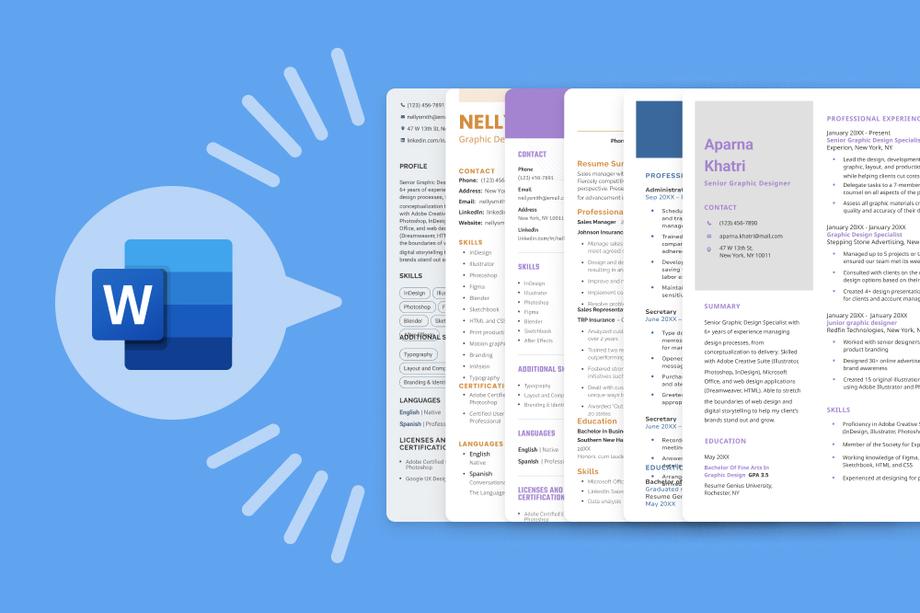
Below, you’ll find 15 of our best free resume templates for Word, plus 9 additional templates available directly from Microsoft. Download a template you like and start writing your resume in minutes.
15 custom resume templates for Microsoft Word
Here are 15 of our favorite free and easy-to-edit resume templates vetted by our in-house team of career experts:
 See Template
 See Template
 See Template
 See Template
 See Template
 See Template
 See Template
 See Template
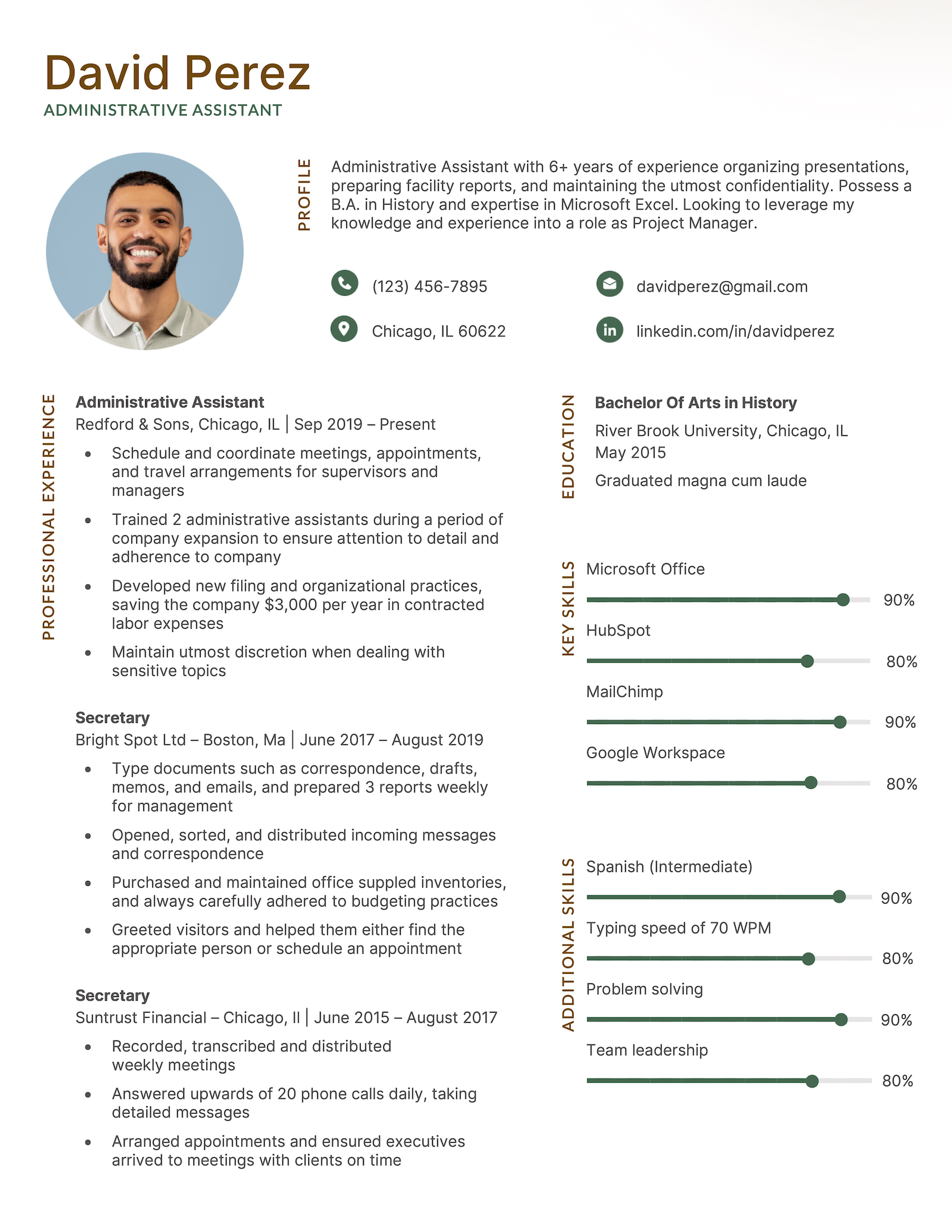 See Template
 See Template
 See Template
 See Template
 See Template
 See Template
 See Template
1. Simple
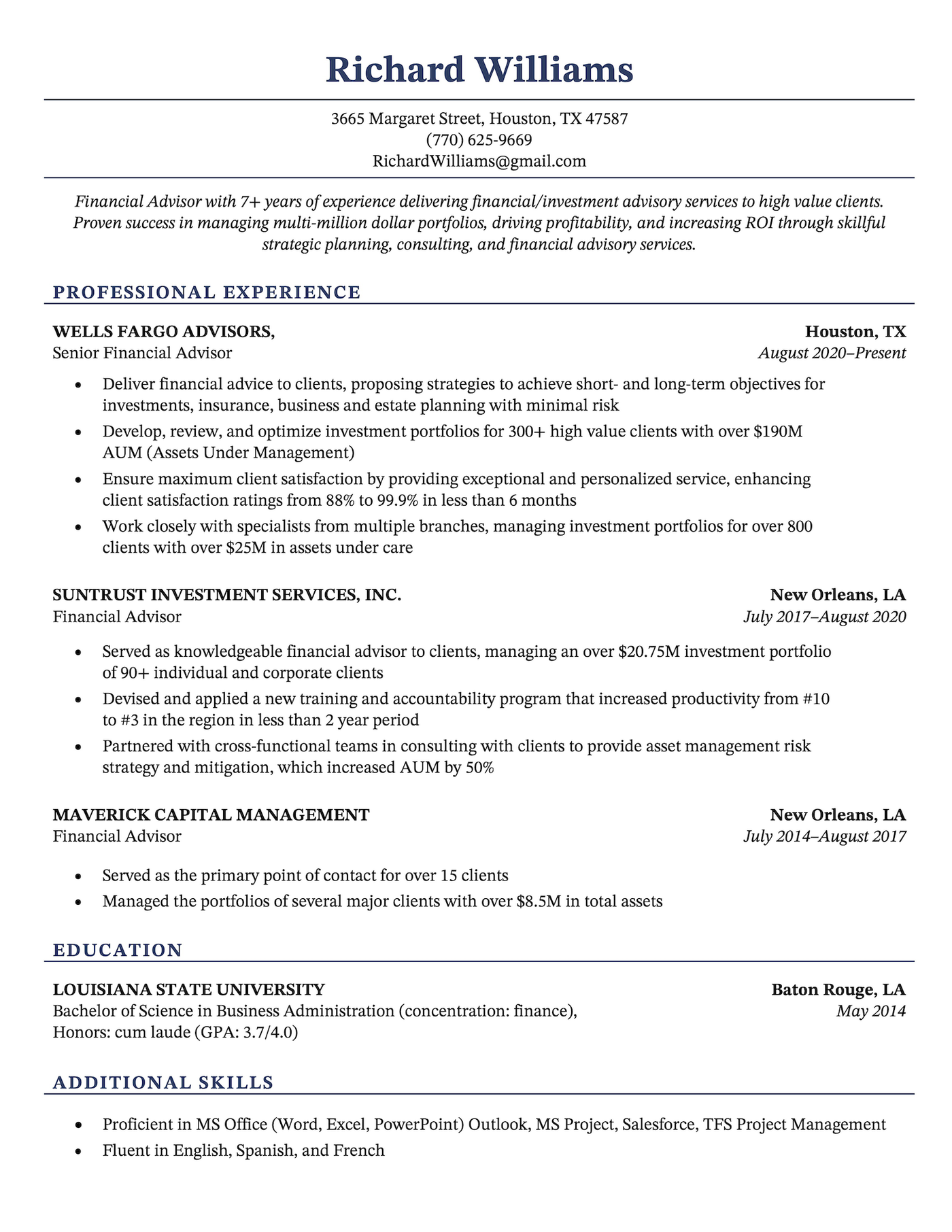
2. Executive
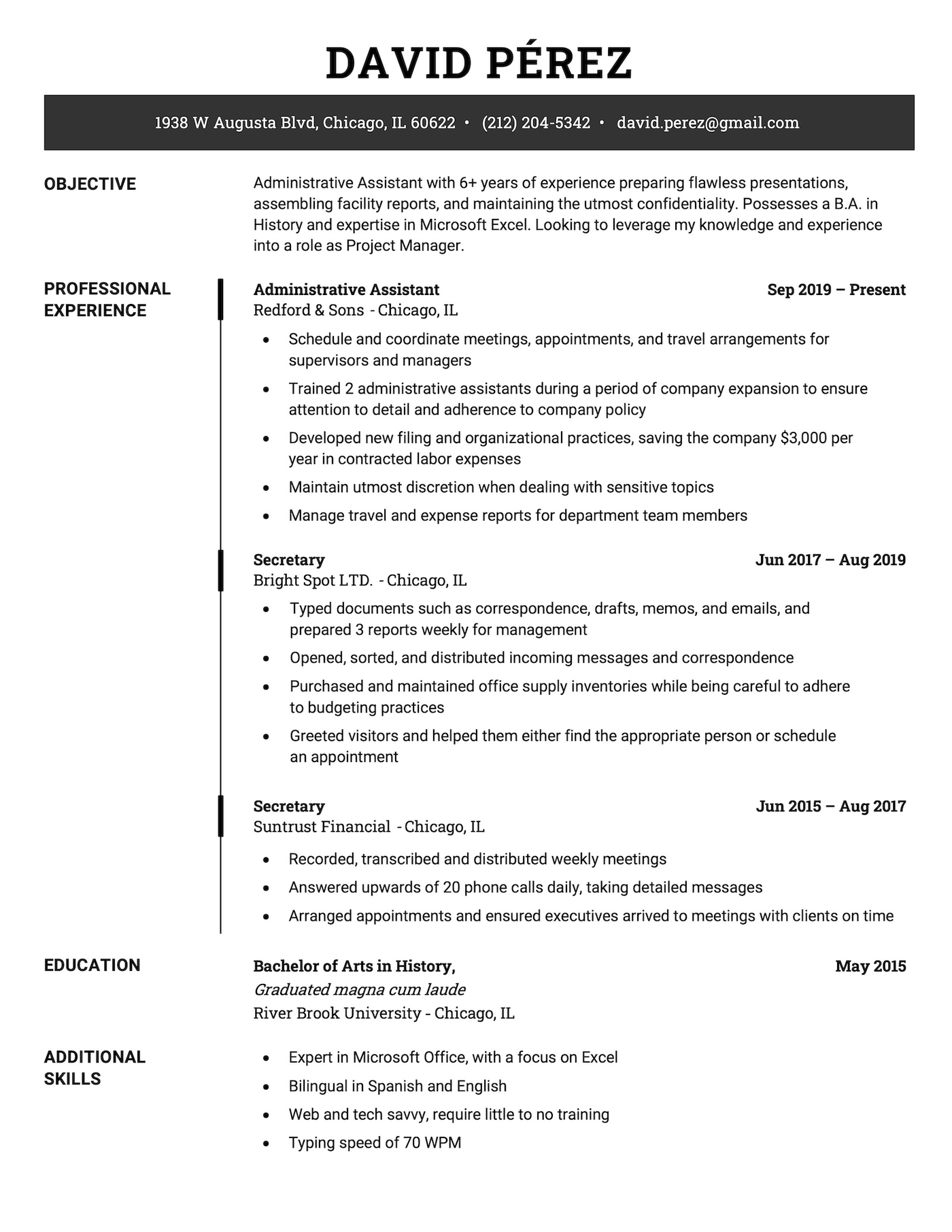
3. Clean
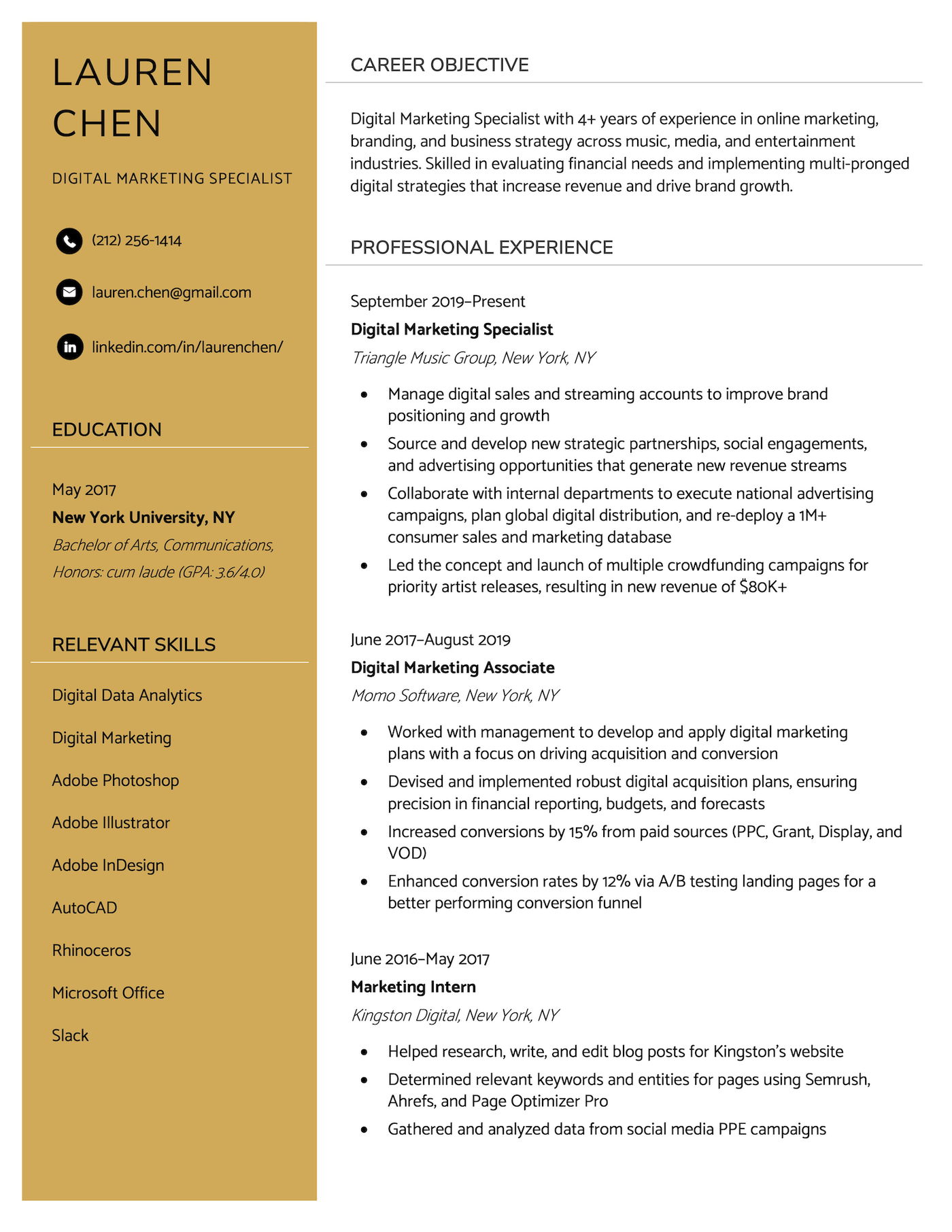
4. Current
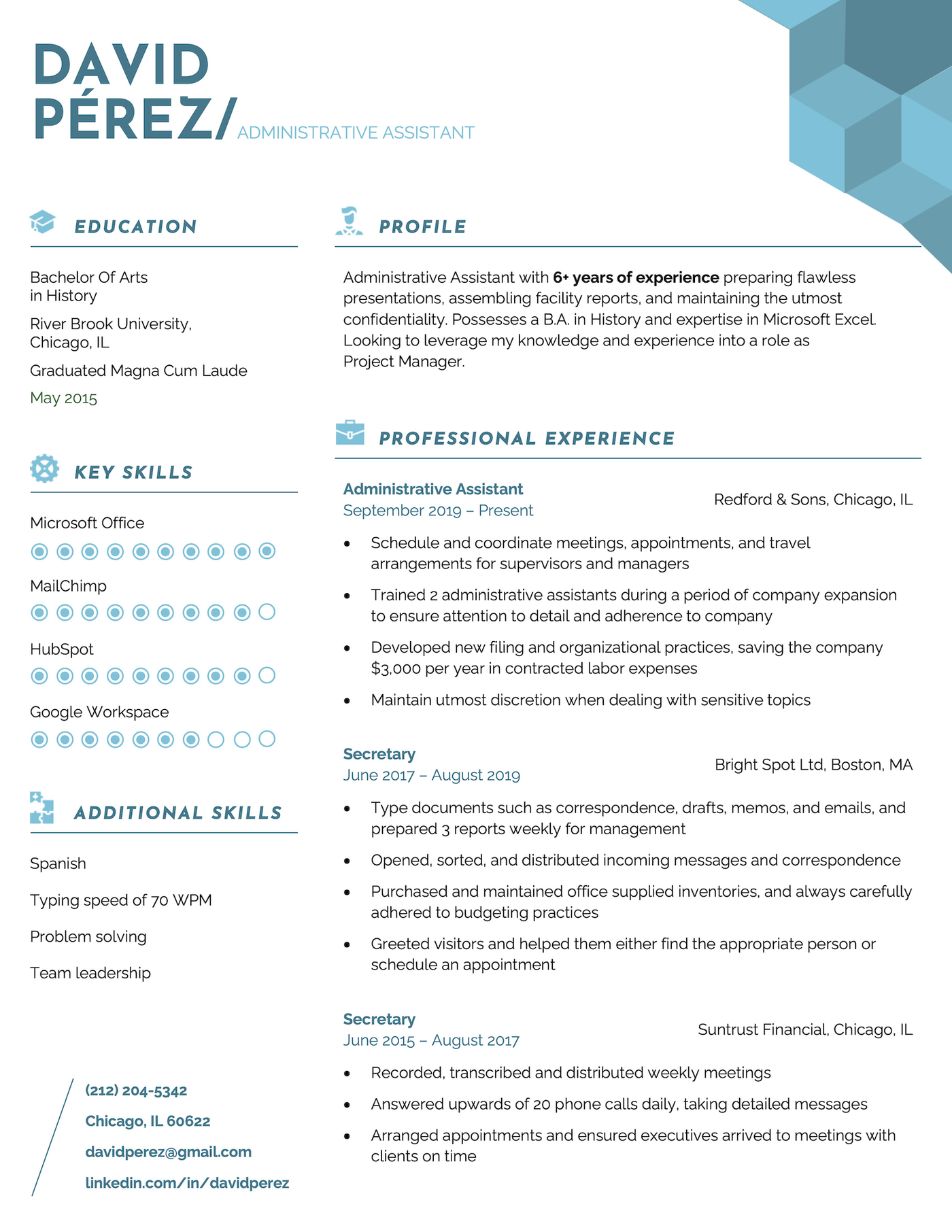
5. Pretty
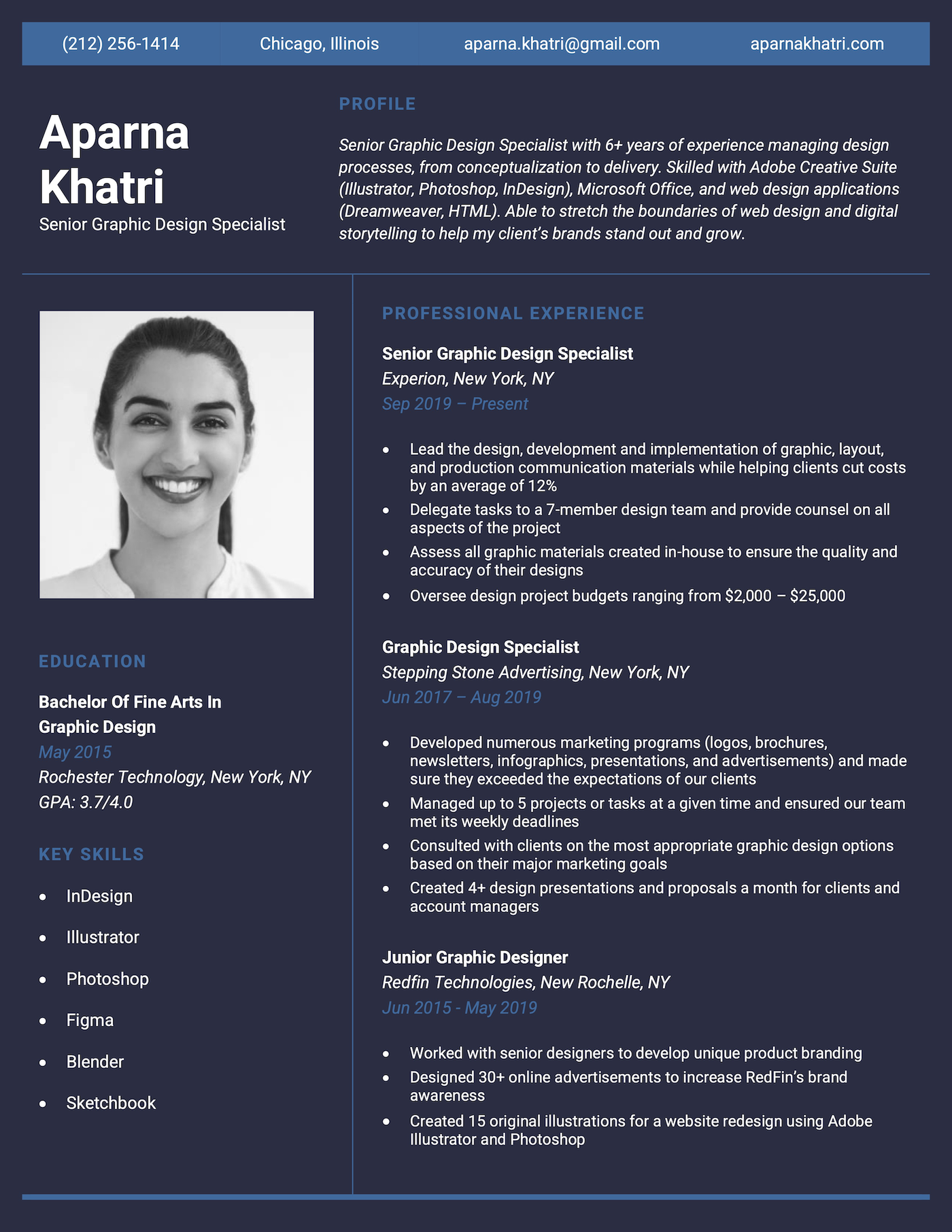
6. Classic
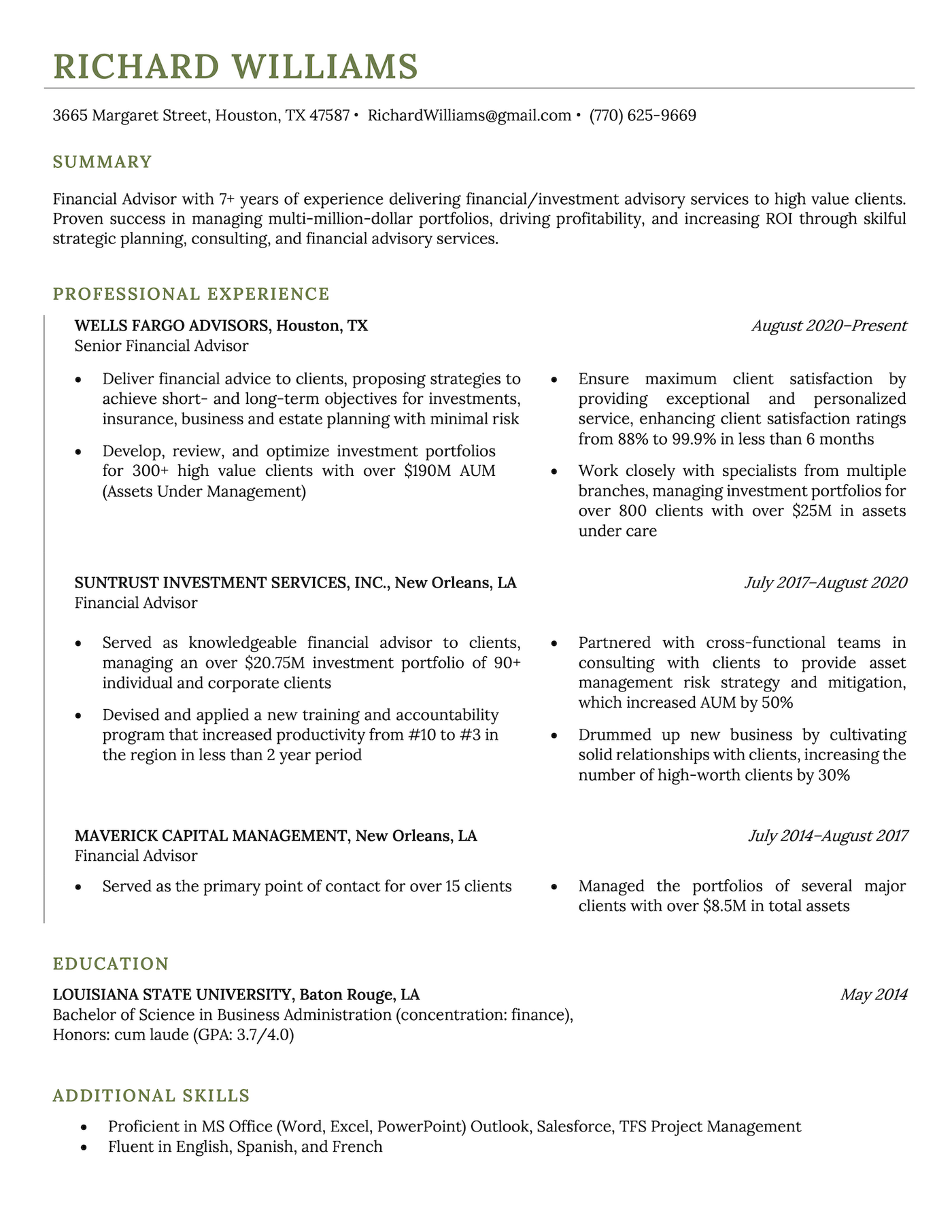
7. Premium
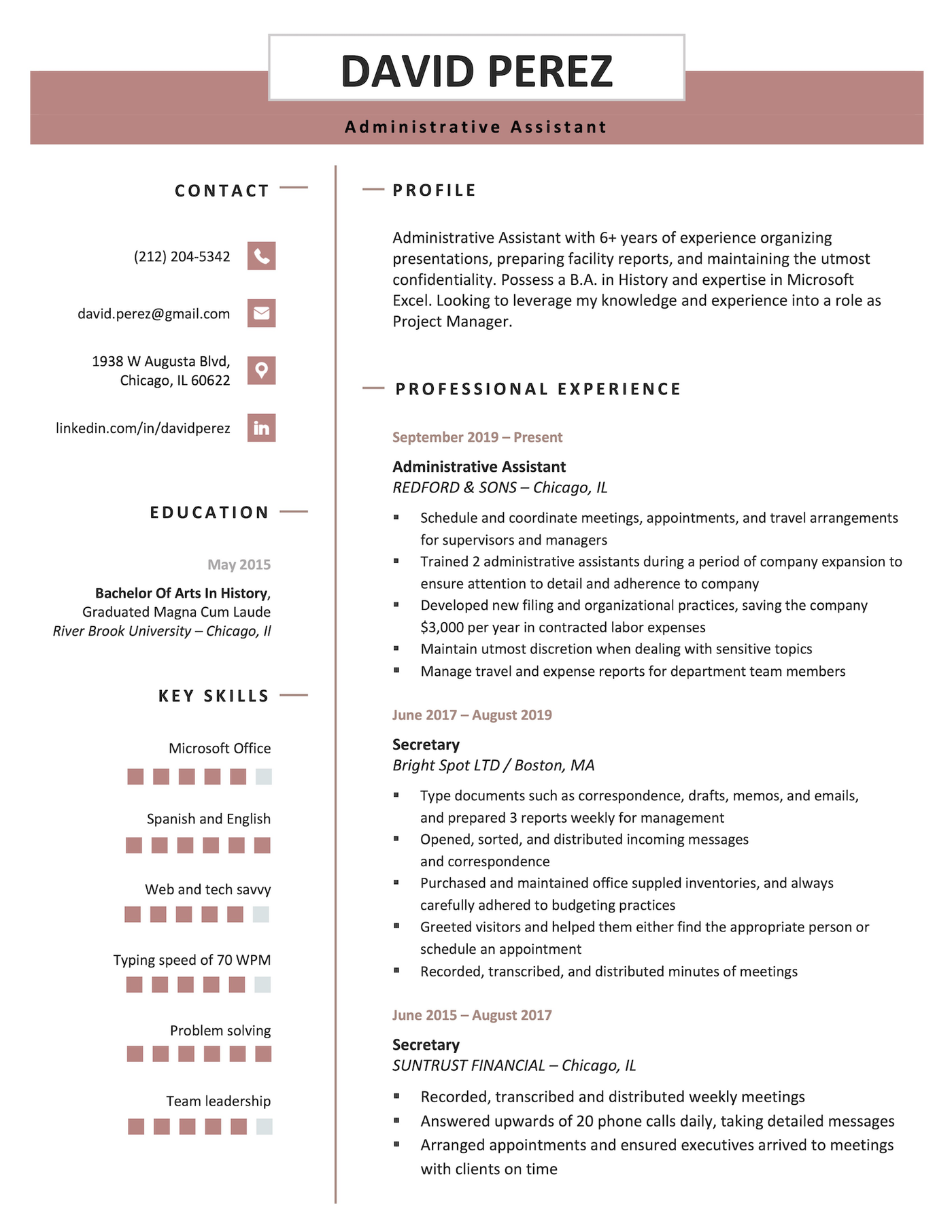
8. Two Column
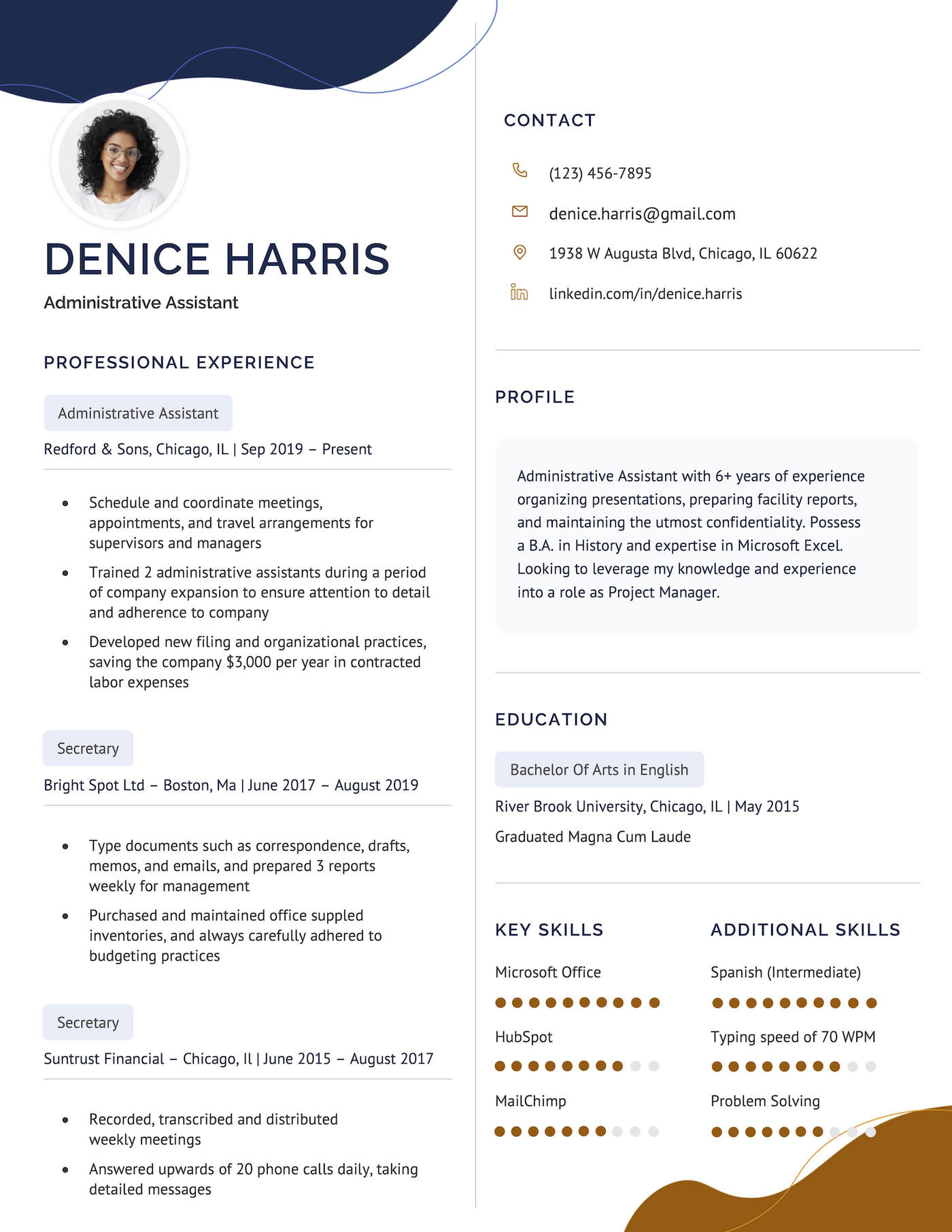
9. Tech
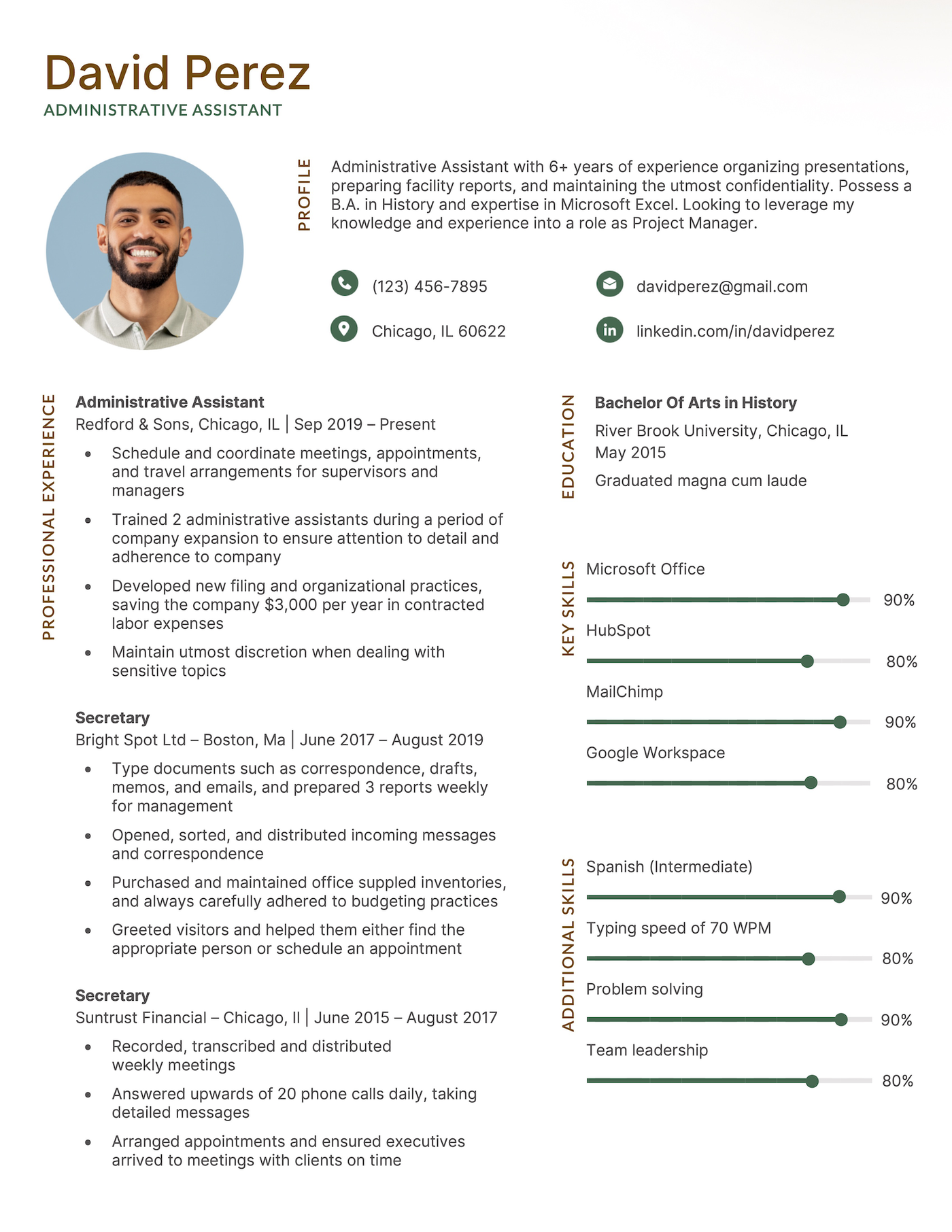
10. Aesthetic
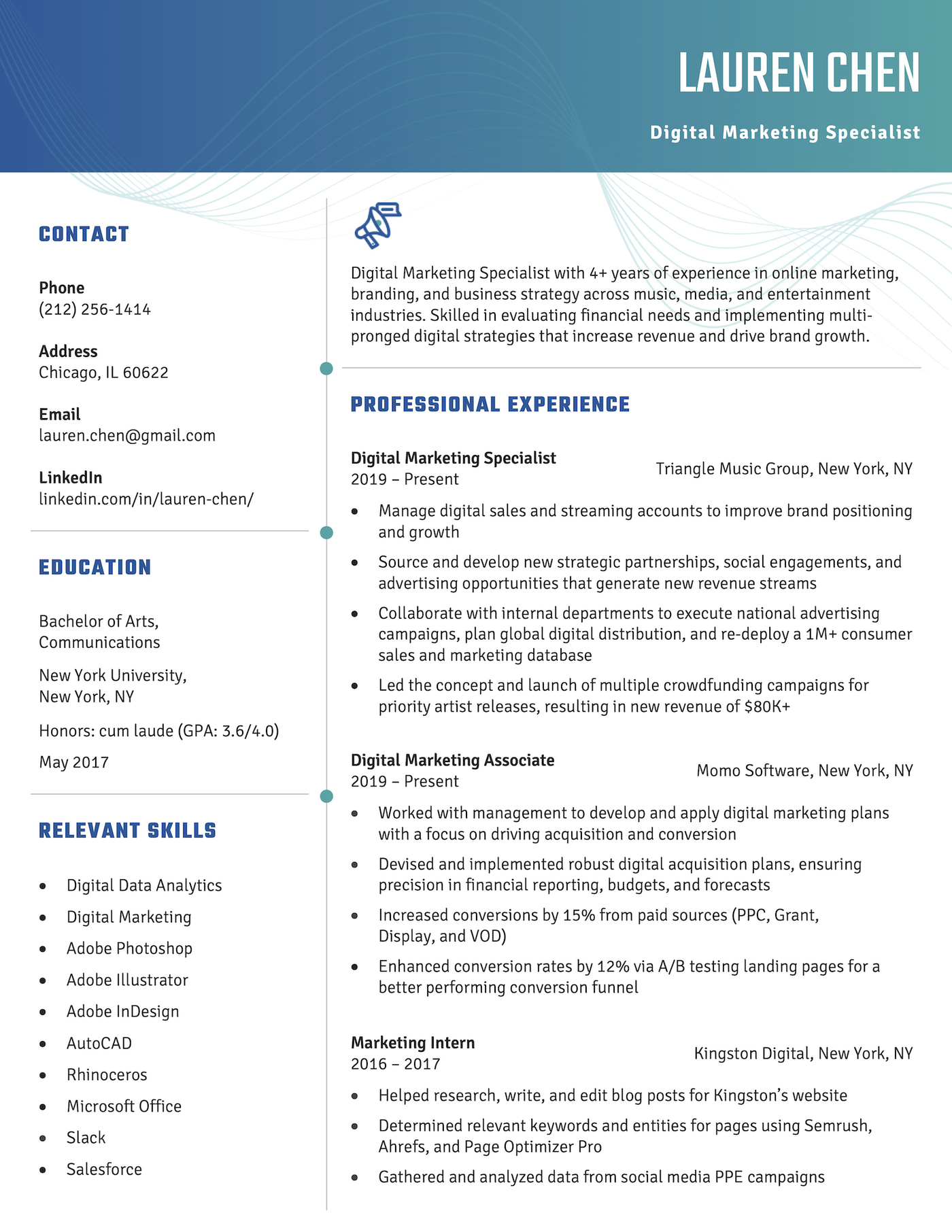
11. Corporate
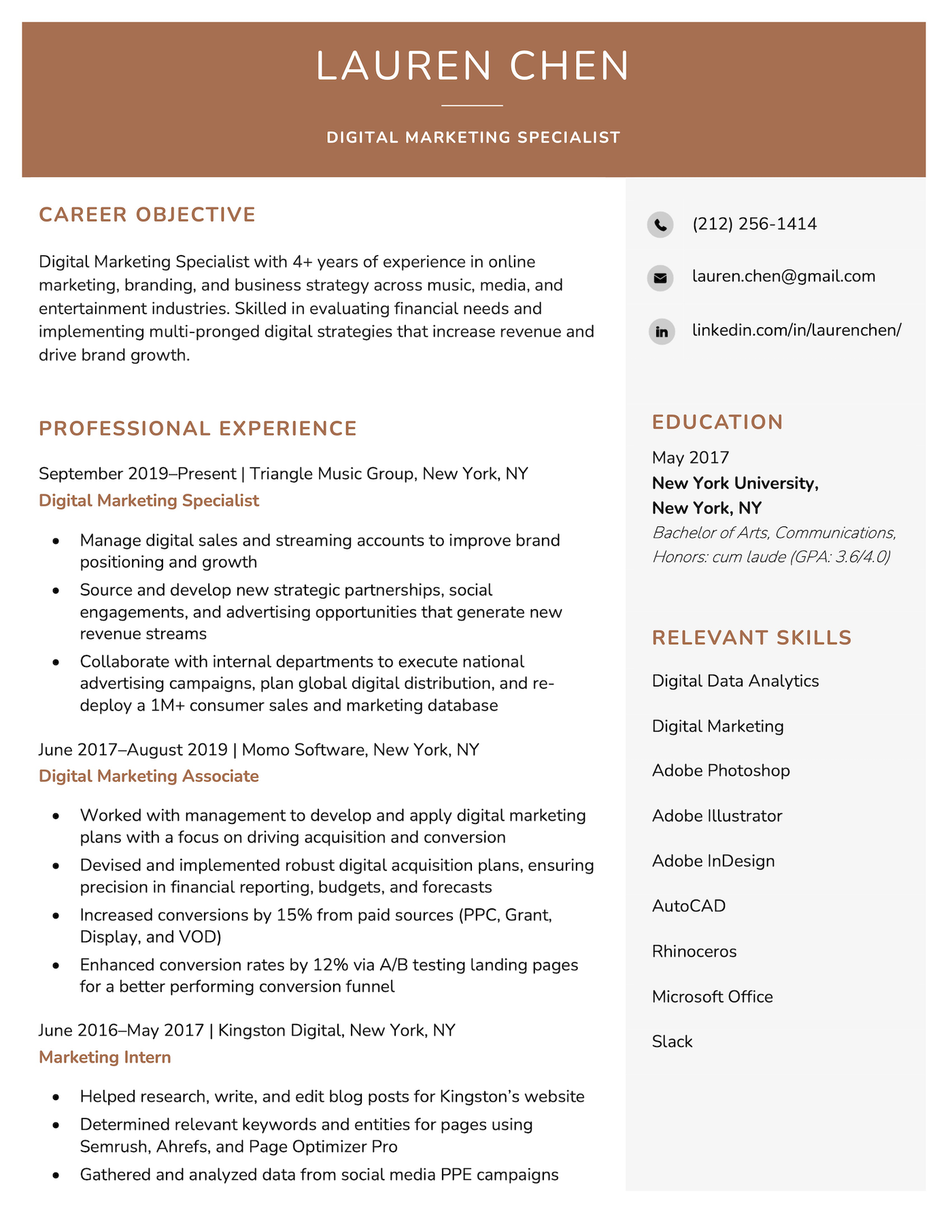
12. White House
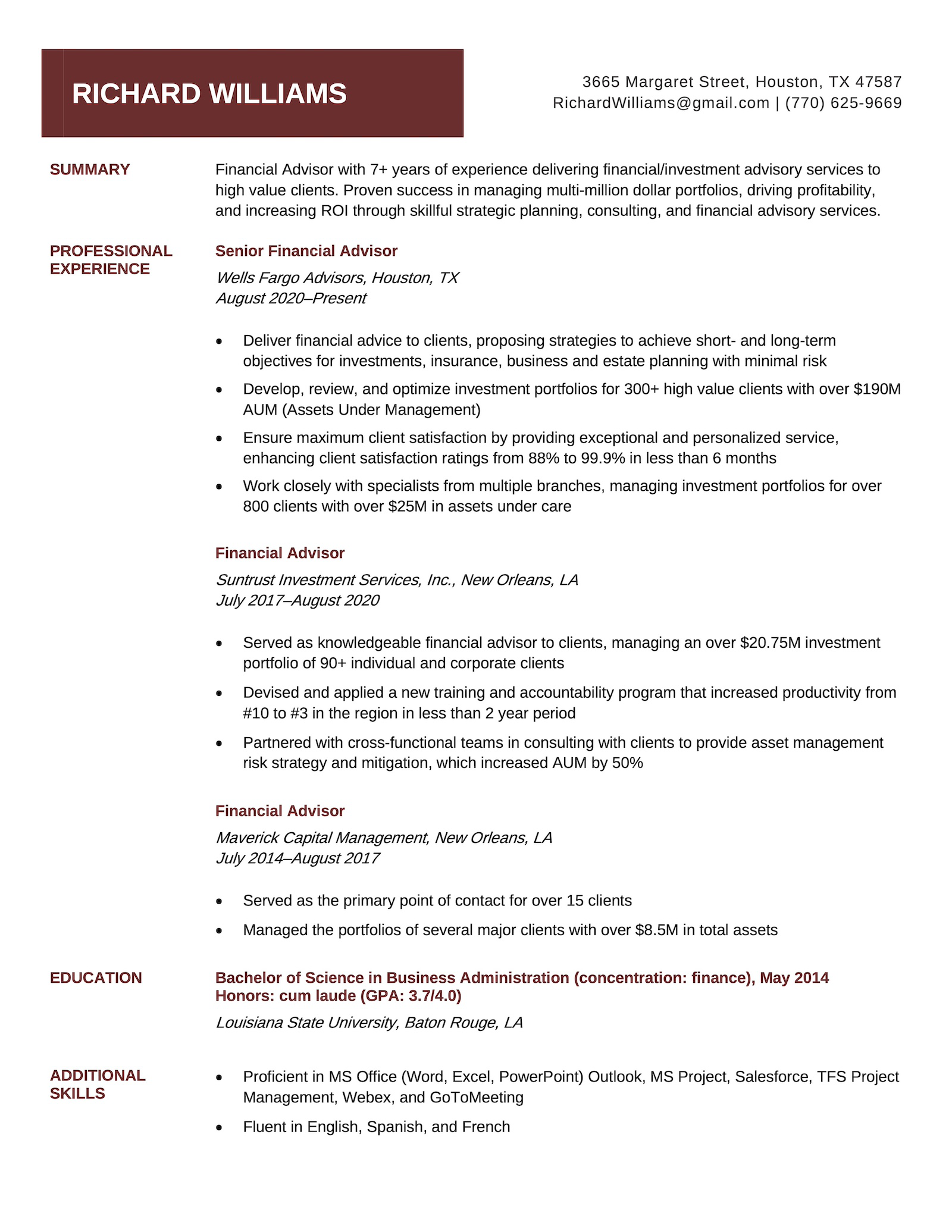
13. Visual
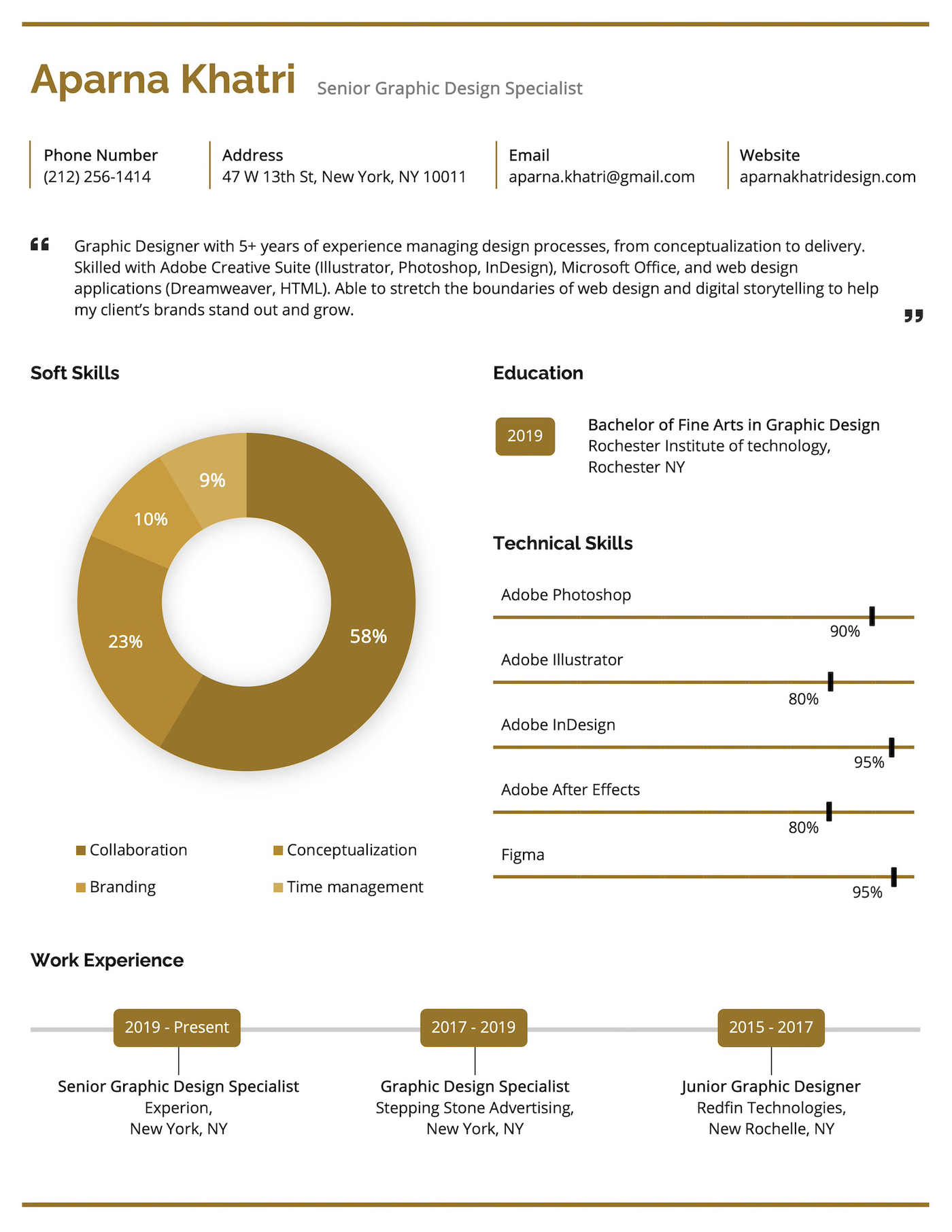
14. Pastel
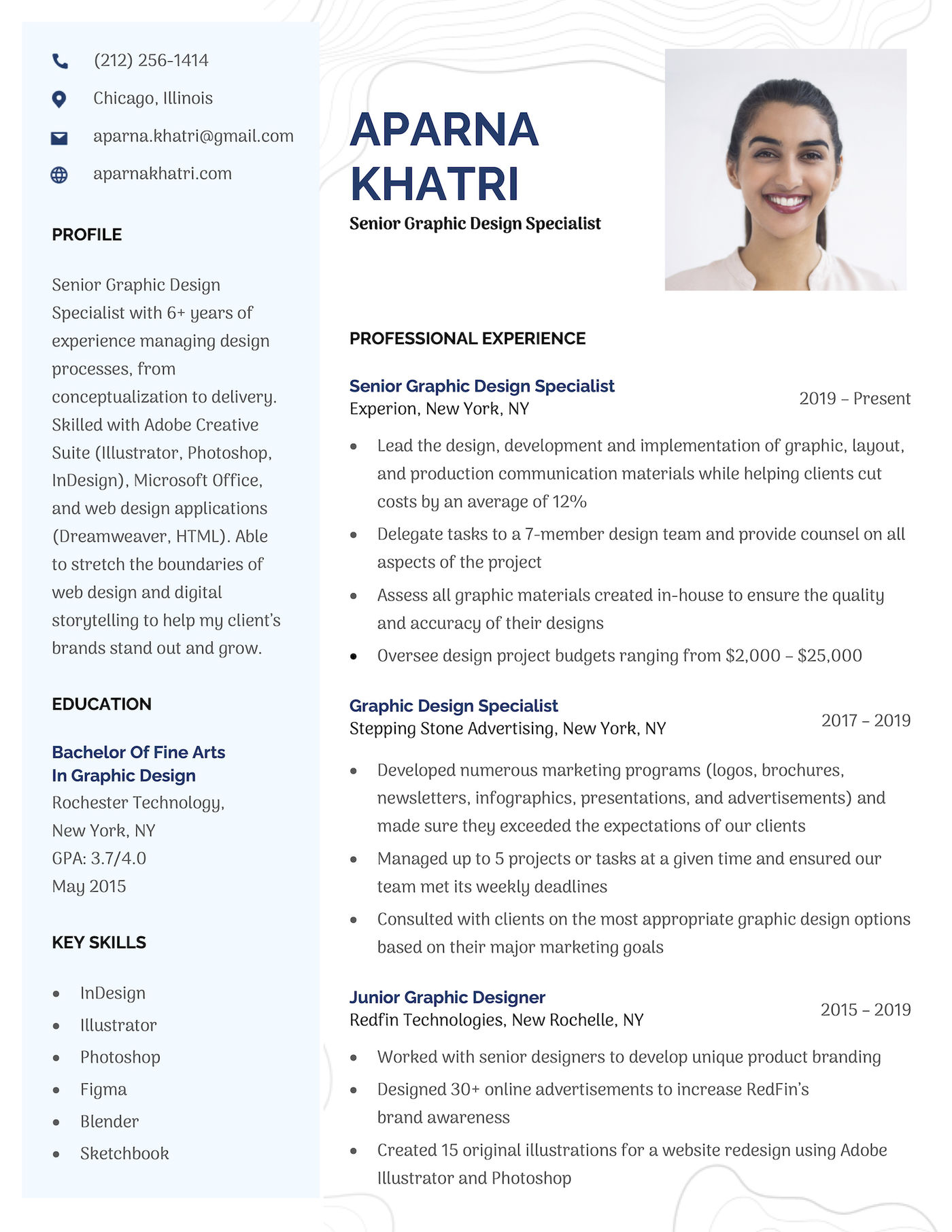
15. Cosmopolitan
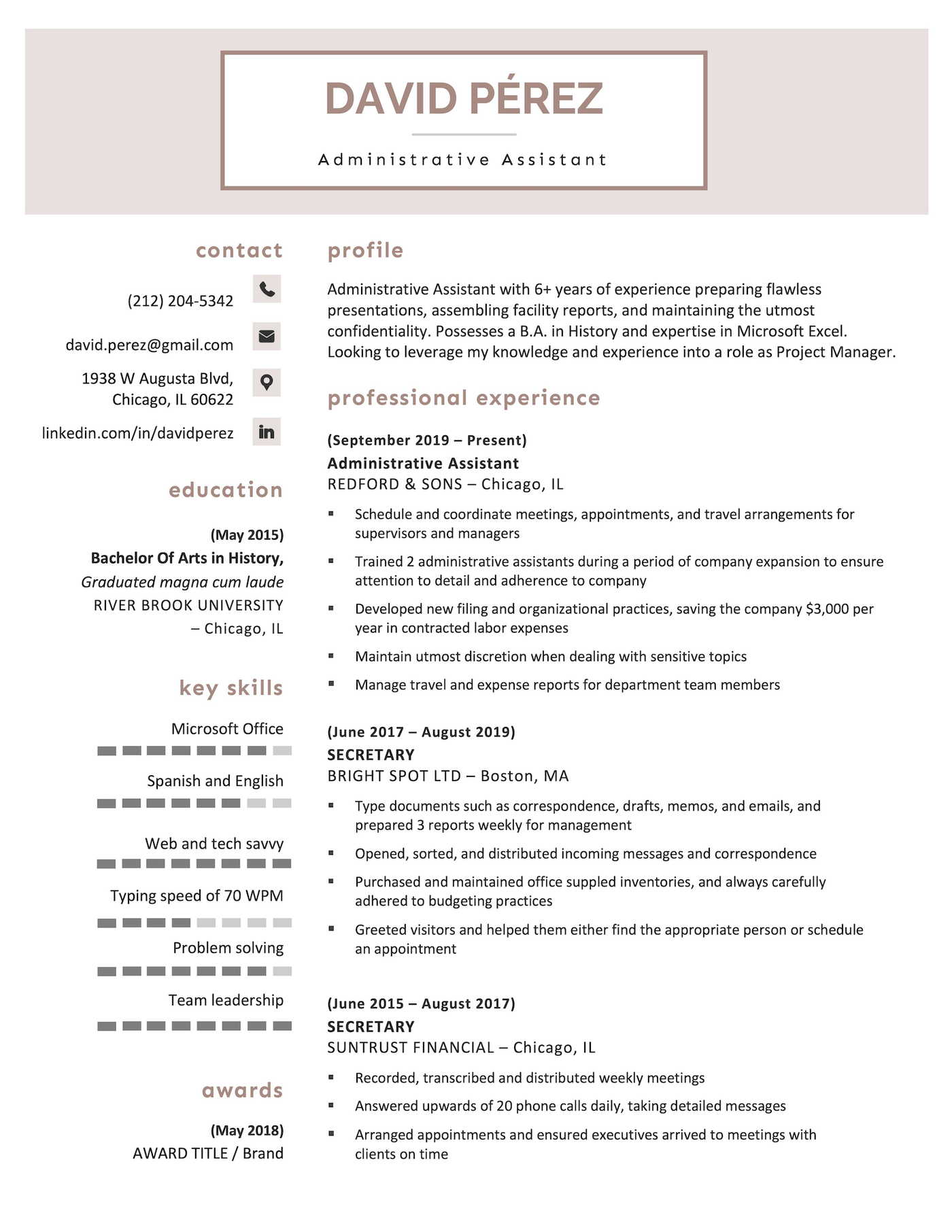
9 free resume templates available in Word
Here are nine more resume templates from Microsoft available in Word:
 See Template
 See Template
 See Template
 See Template
 See Template
 See Template
 See Template
 See Template
 See Template
1. Creative
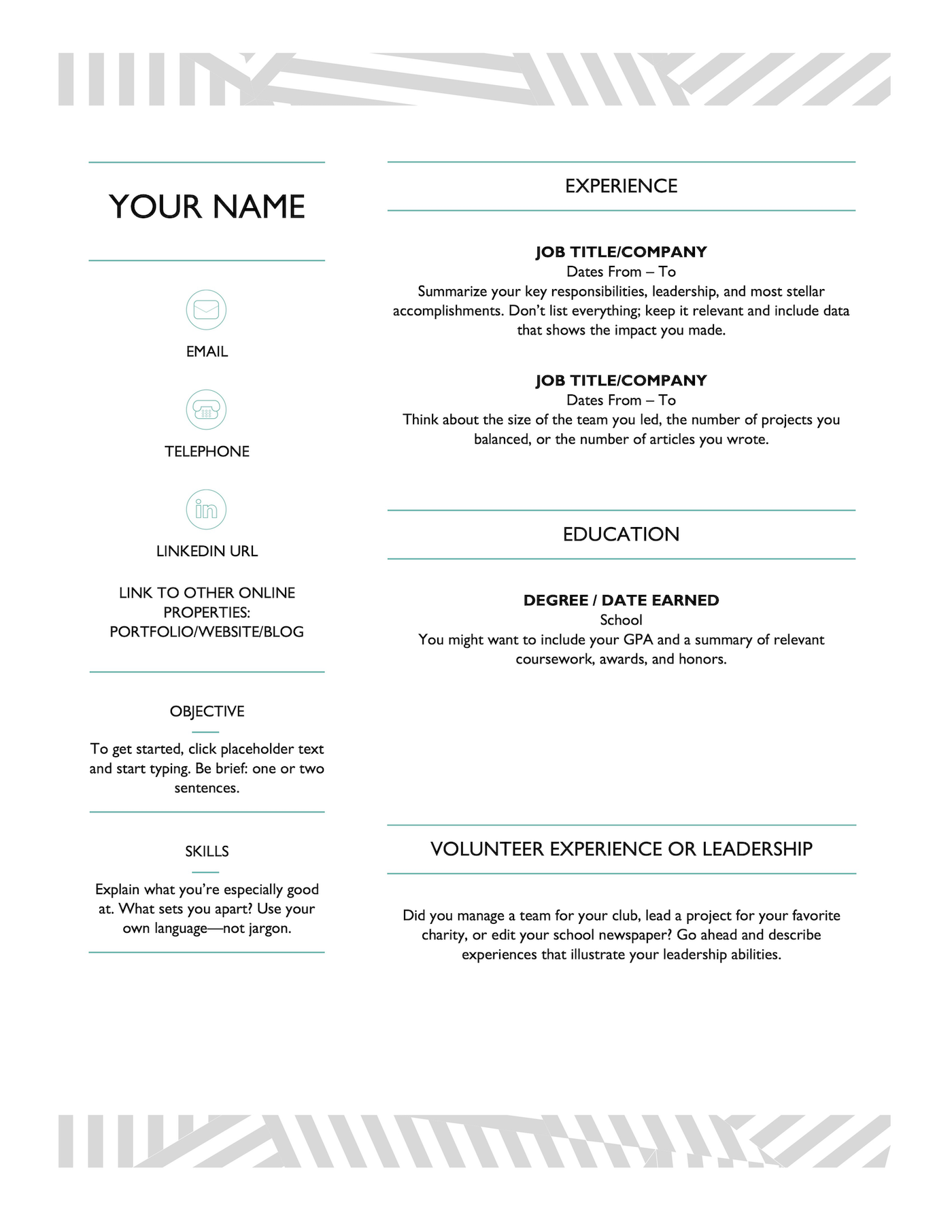
2. Crisp & Clean
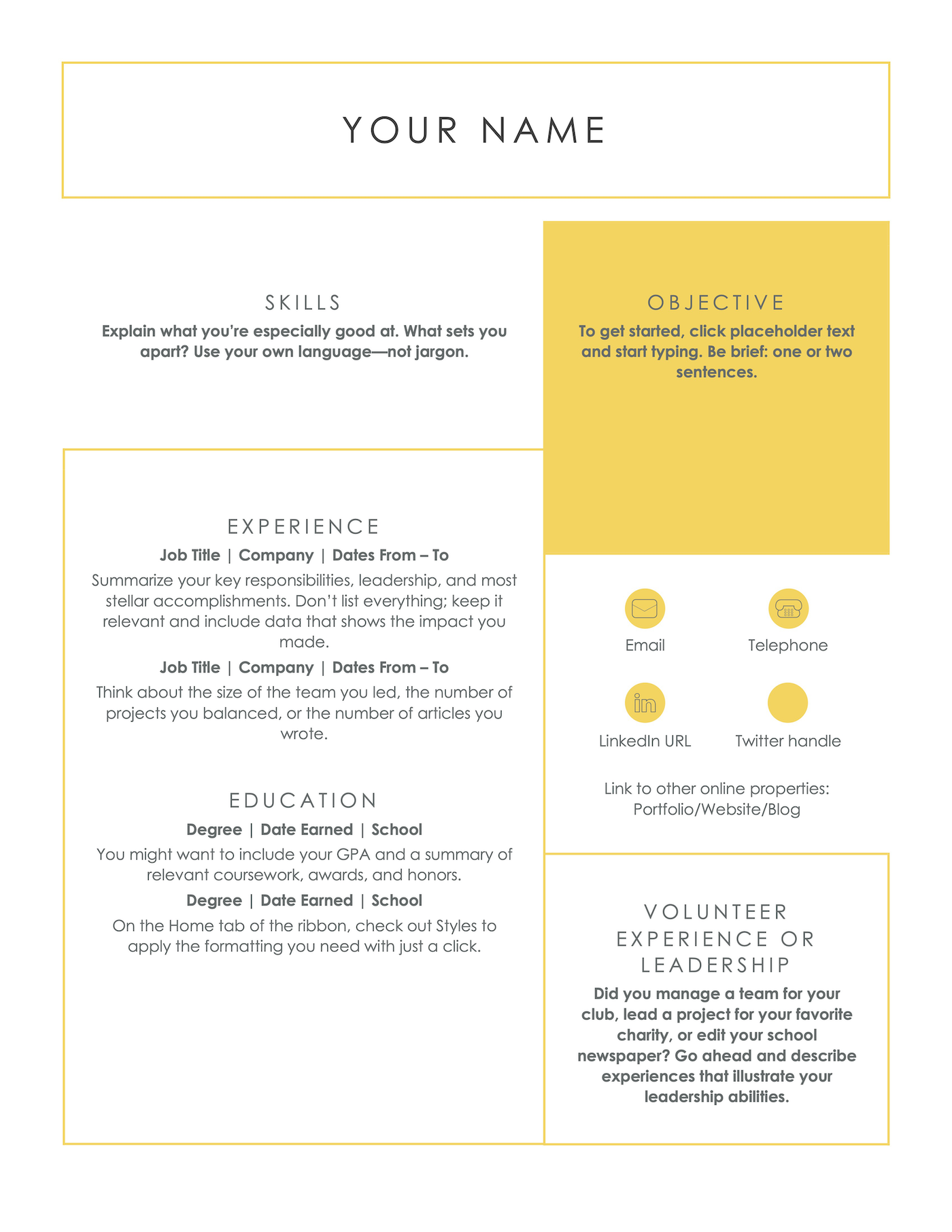
3. Polished
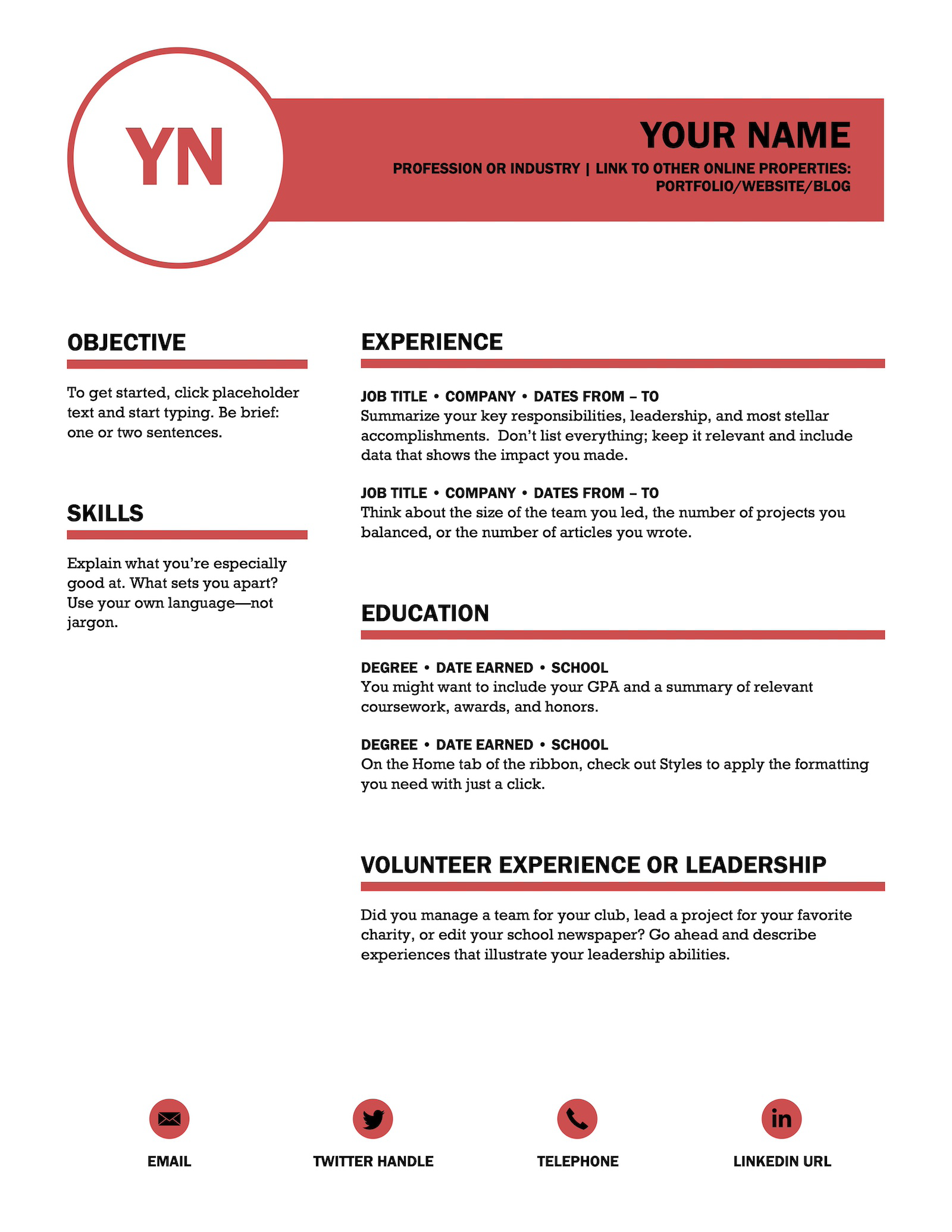
4. Basic
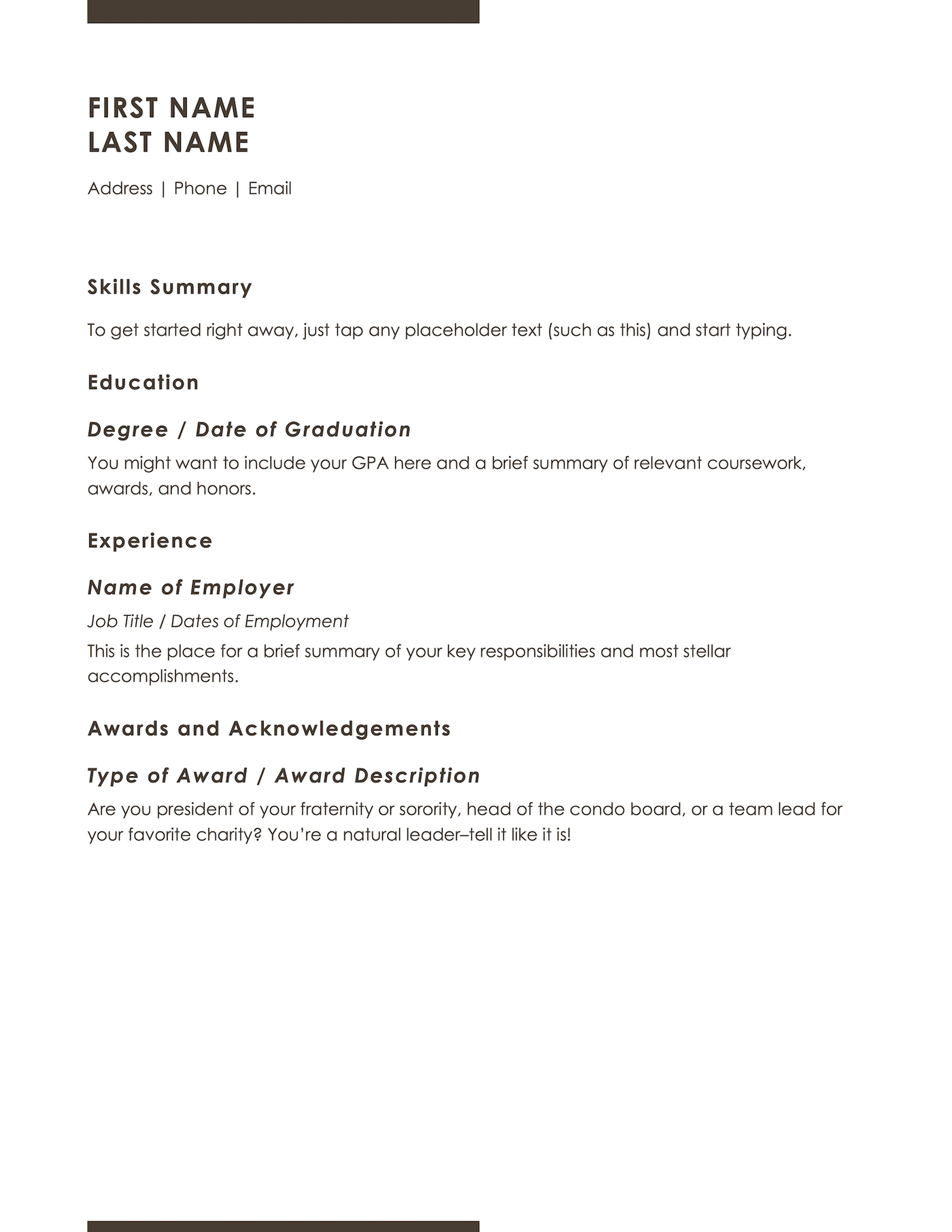
5. Bold Modern
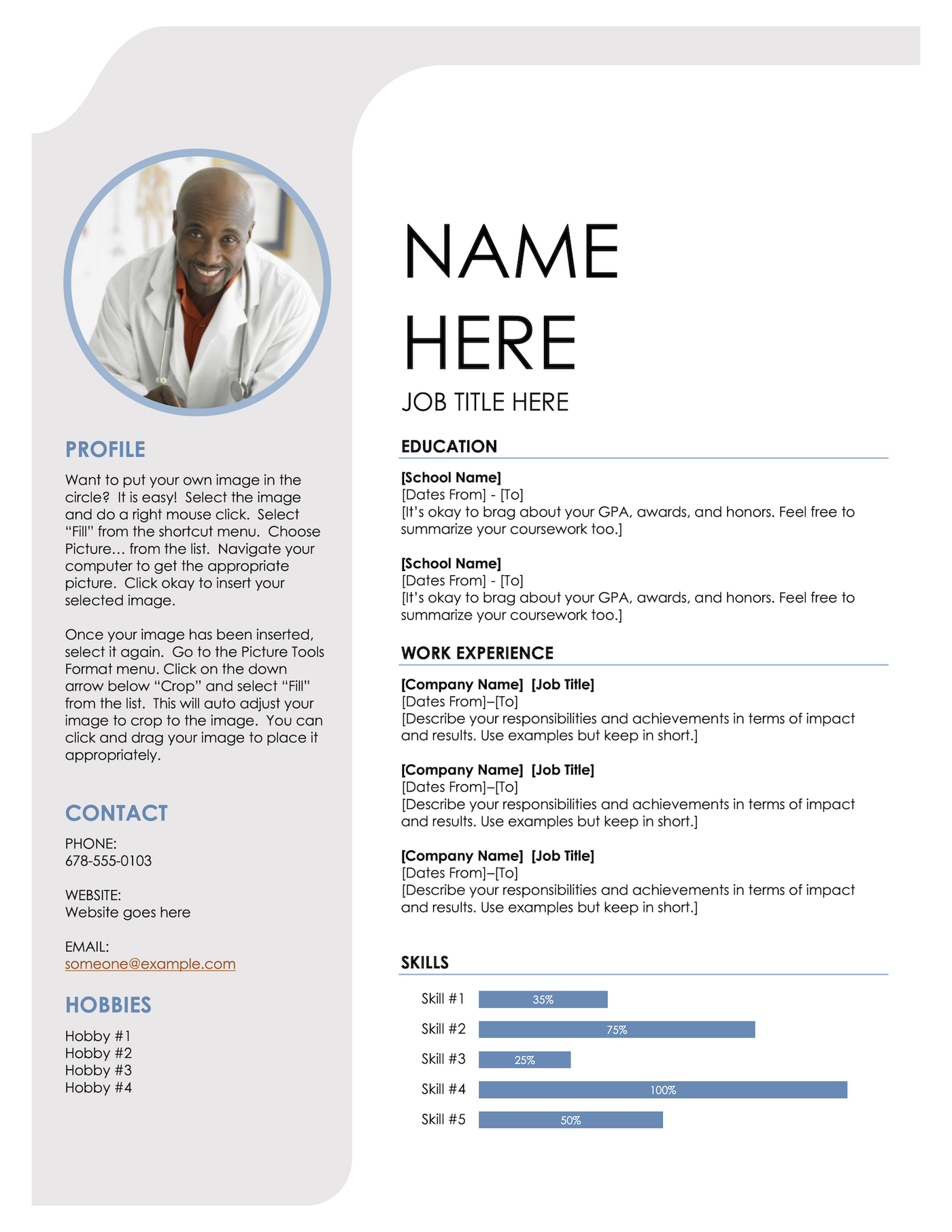
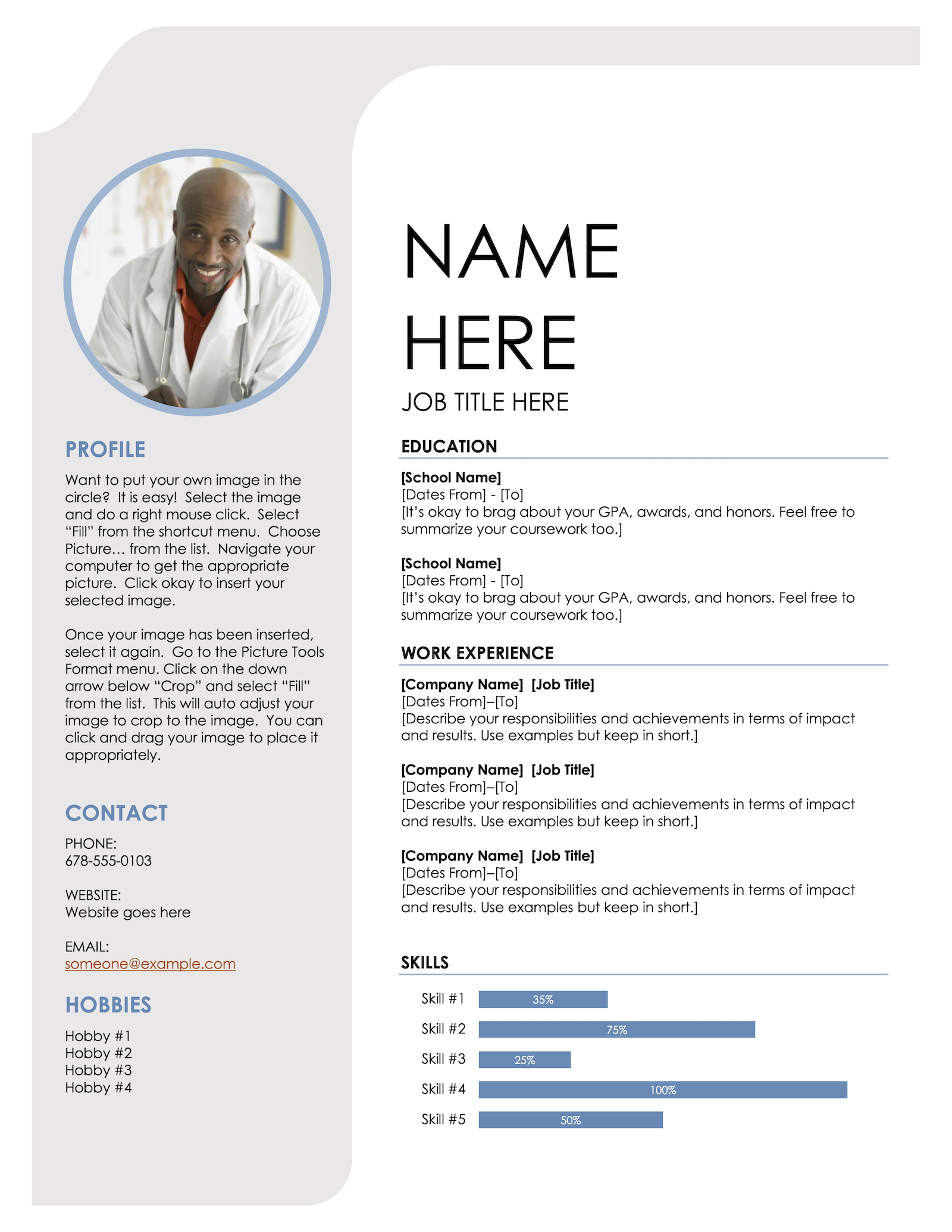
It’s not common practice in the US to include a photo on your resume, so unless you’re applying to work in an industry that requires it, like acting or modeling, it’s best to delete the photo on this template.
6. Modern
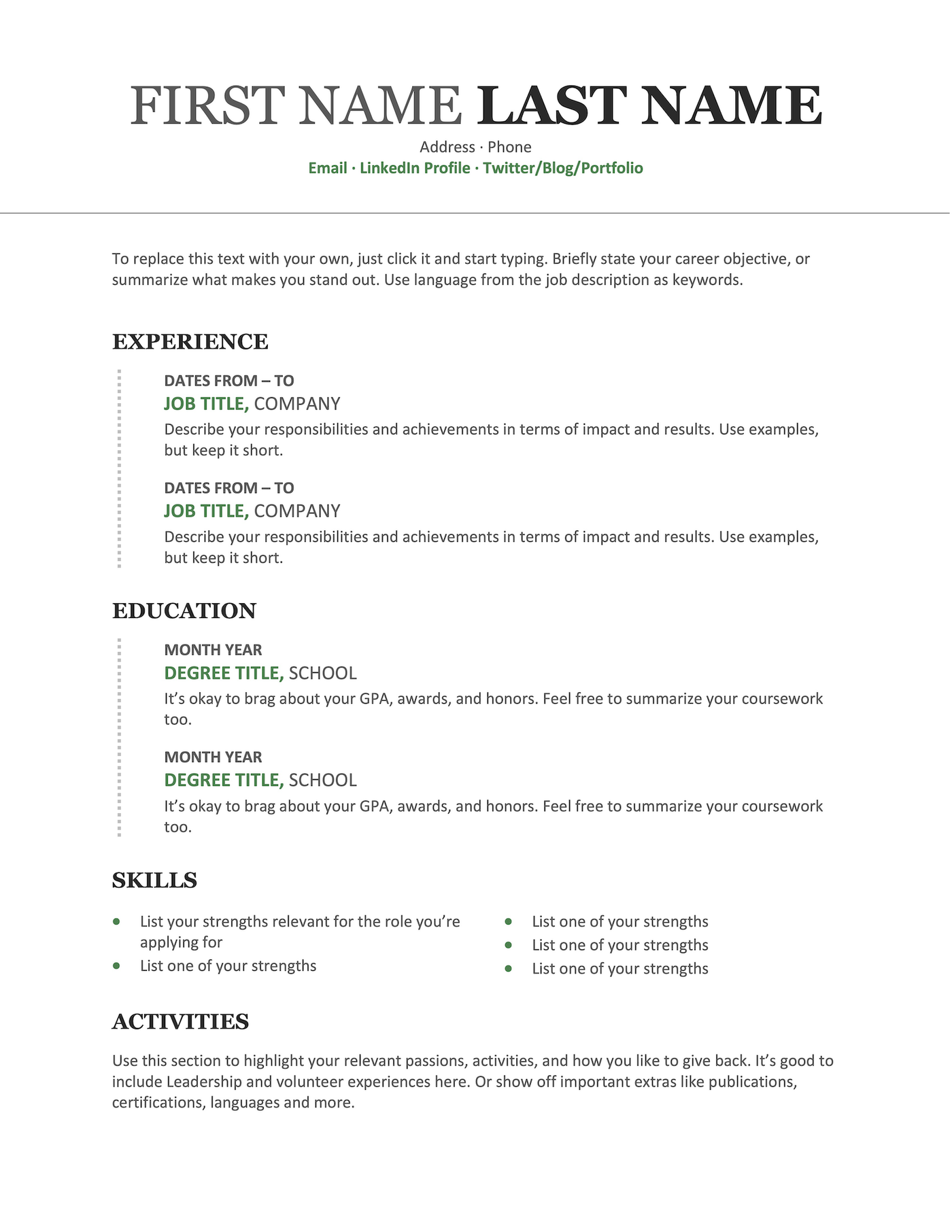
7. Columns
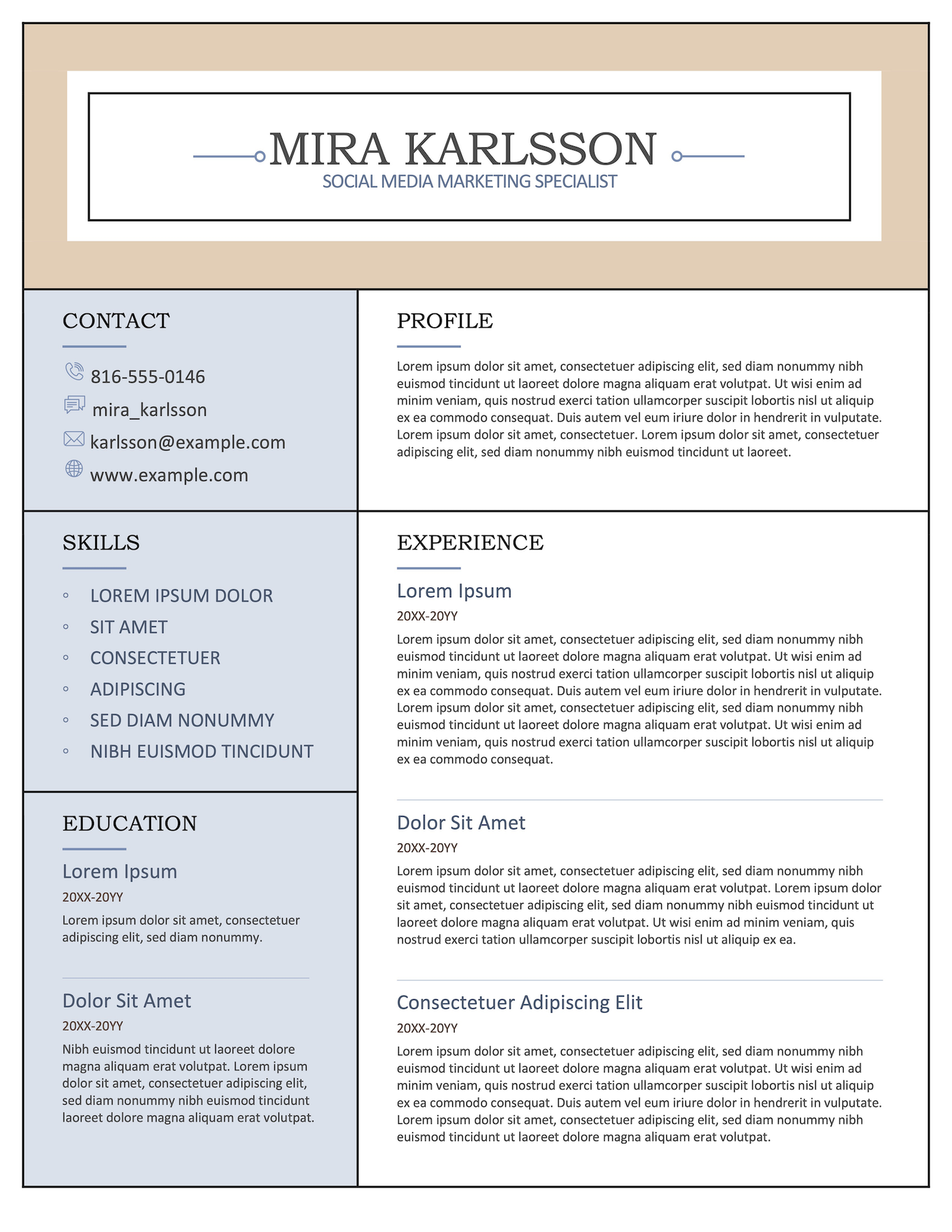
8. Minimalist
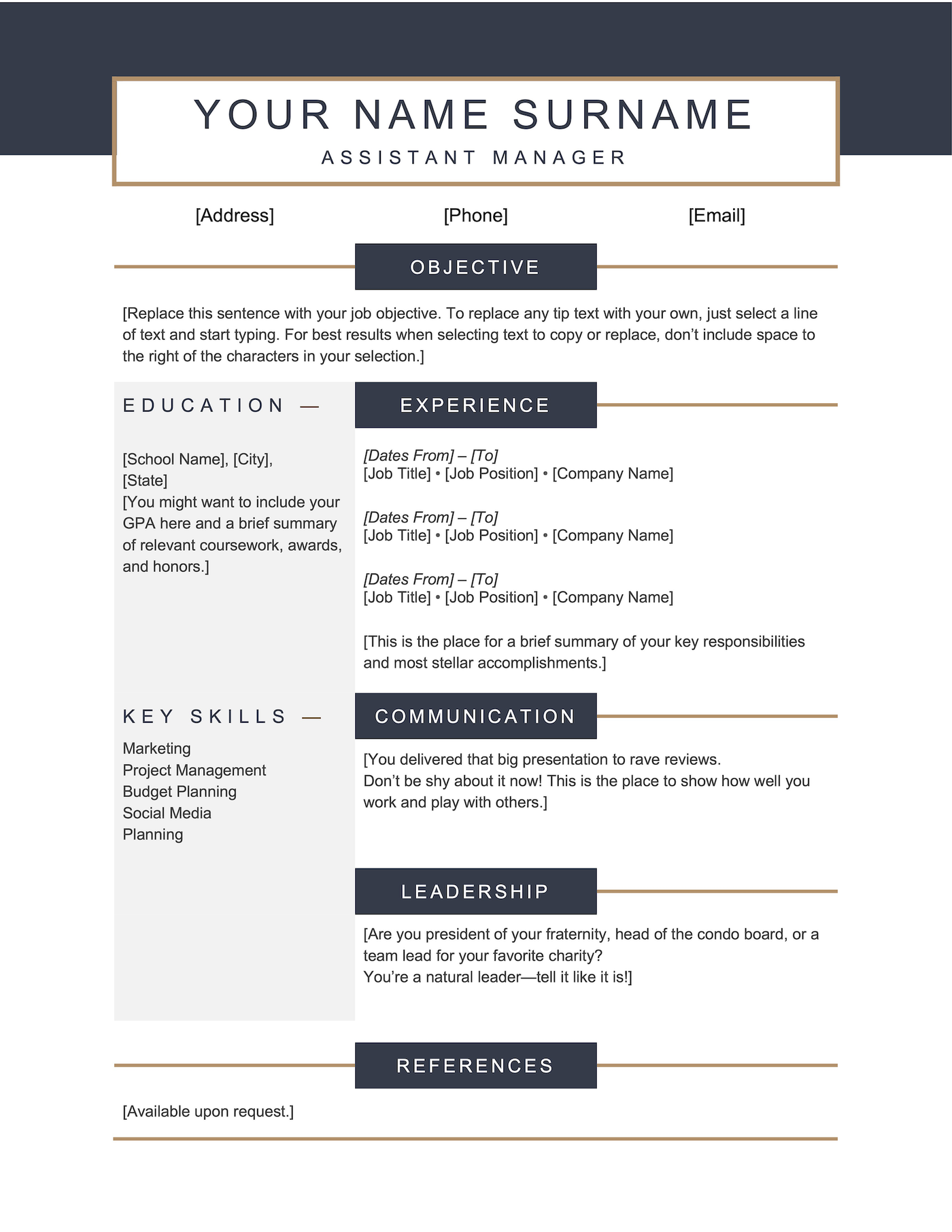
9. Swiss
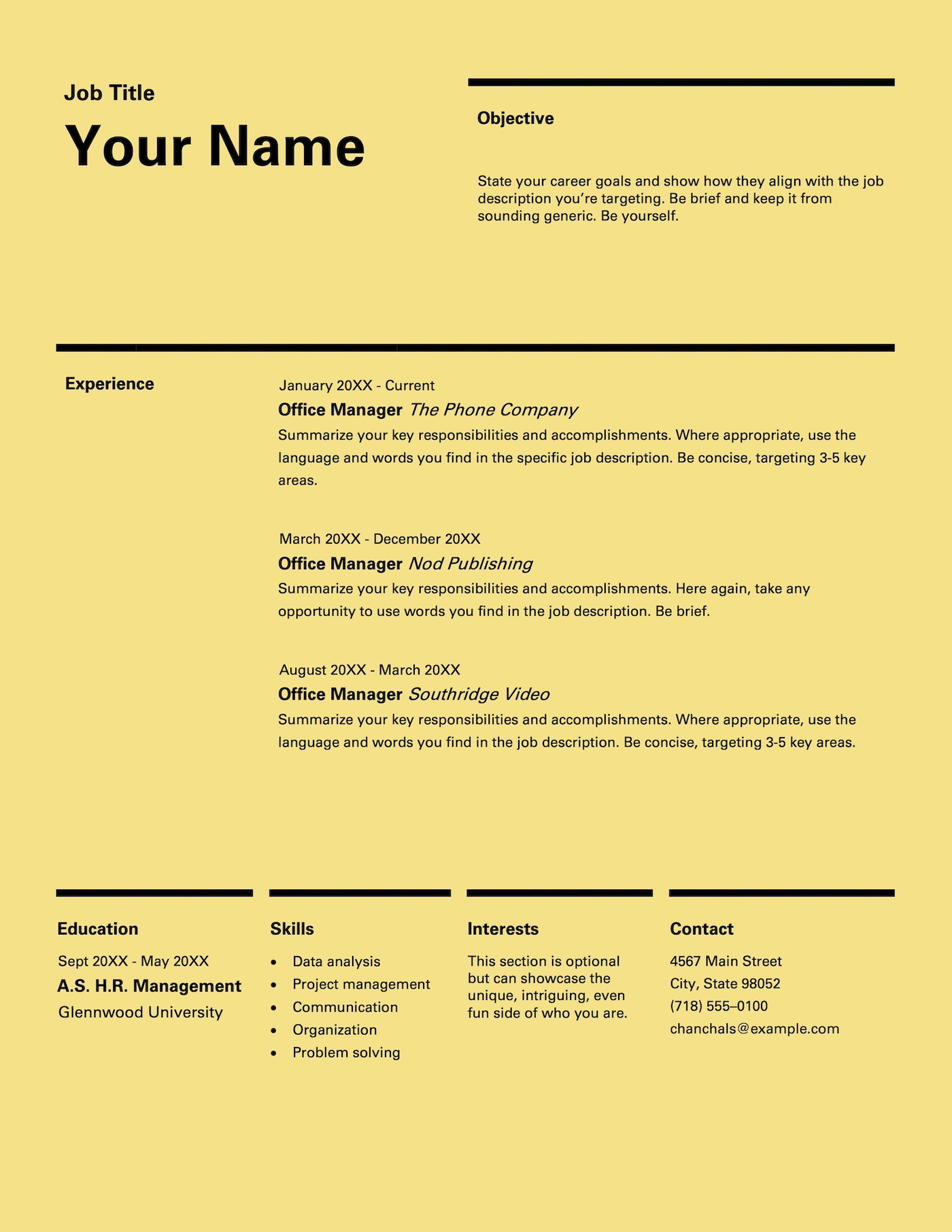
How to select a Microsoft Word resume template
You can also select a template directly in Microsoft Word. Here’s how:

- Open Microsoft Word and click “File” in the top-left corner
- Select “New” from the menu
- In the search bar at the top right, type “resume”
- You’ll see all of the default resume templates available in MS Word. Scroll through and select the template you want to use by clicking on it
- Click “Create” (or simply double click on the template) to start building your resume
Use the matching Microsoft Word cover letter template to give your application a cohesive look.
How to format Word resume templates
Here are a few tips to get the most out of a resume template on Microsoft Word.
Edit your resume sections correctly using tables
Tables are already built into our resume template to keep each section aligned. Here’s how to edit them the right way:
To start, enable gridlines so you can see the borders of each cell in the table. In the Word menu bar, click on Table > View Gridlines, and the cell borders will appear so you can see exactly which parts of your resume are in separate cells and edit the content without messing up the layout.
This shows you which parts of your resume are in separate cells and lets you edit the content without messing up the layout.
You can also right-click on a cell and select Delete Cells or Delete Rows to delete the entire cell or row, or Insert to add cells or rows wherever you want.
Keep your font size between 10 and 12 points
We recommend keeping the original text formatting for our resume templates. But if you do decide to edit the text, the best font size for a resume is between 10 and 12 pts for body text.
You can choose a larger font size for your headings, and your name should be the largest (up to 30 pts is fine).
Don’t overcrowd your resume
Recruiters skim resumes in seconds, so make it easy for them to find the most relevant details at a glance.
Don’t try to fit as much information as possible onto your resume. Instead, focus on quality over quantity. Highlight your key achievements in your bullet points instead of listing every task you performed at a job.
Submit your resume as a PDF
After you’ve finalized and proofread your resume, save it as a PDF file before sending it out. A PDF locks in the formatting so it looks the same on every device and when printed. A Word file (.docx) may display differently depending on the employer’s software.
If the employer specifically requests a Word file, follow their instructions; otherwise, a PDF is the best format.
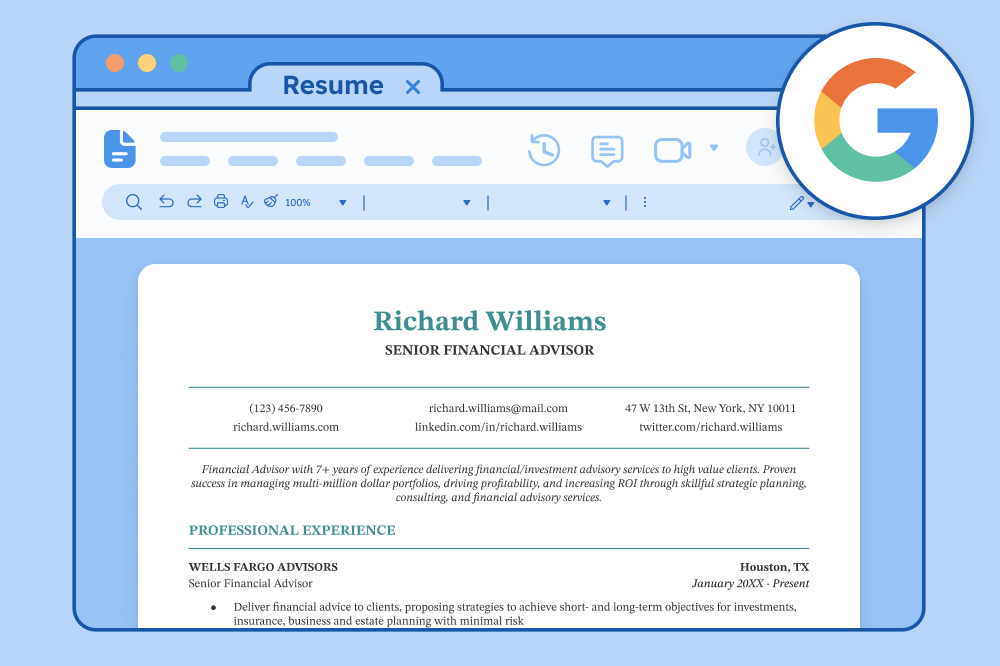
Tired of formatting in Word?

More resume templates
These Word templates are just a small sample of our full selection. Here are more resume template types you can try:
Templates by design style:
- Basic resume templates: Straightforward and uncluttered layout designs
- Blank resume templates: Customizable frameworks for building a resume entirely to your liking
- Creative resume templates: Visually striking designs that reflect your originality
- Entry-level resume templates: Created for people who want to make a strong first impression
- Modern resume templates: Designs that feel current and polished
- Picture resume templates: Layouts that include space for a professional headshot
Templates by software/file type:
- Google Docs resume templates: Designed for easy editing in Google Docs
- InDesign resume templates: Sleek resume templates made for Adobe InDesign
- LaTeX resume templates: Technical formats for precise customization
- LibreOffice resume templates: Practical and free-to-use templates for LibreOffice
- Pages resume templates: Designed exclusively for Mac users
- Canva resume templates: Professionally designed layouts that make it easy to build a polished resume online
- PDF resume templates: Formats that display the same way on all devices
Click to rate this article
4.9 Average rating










Facebook
Twitter
Linkedin
Pinterest
Reddit
Copy link